File Upload
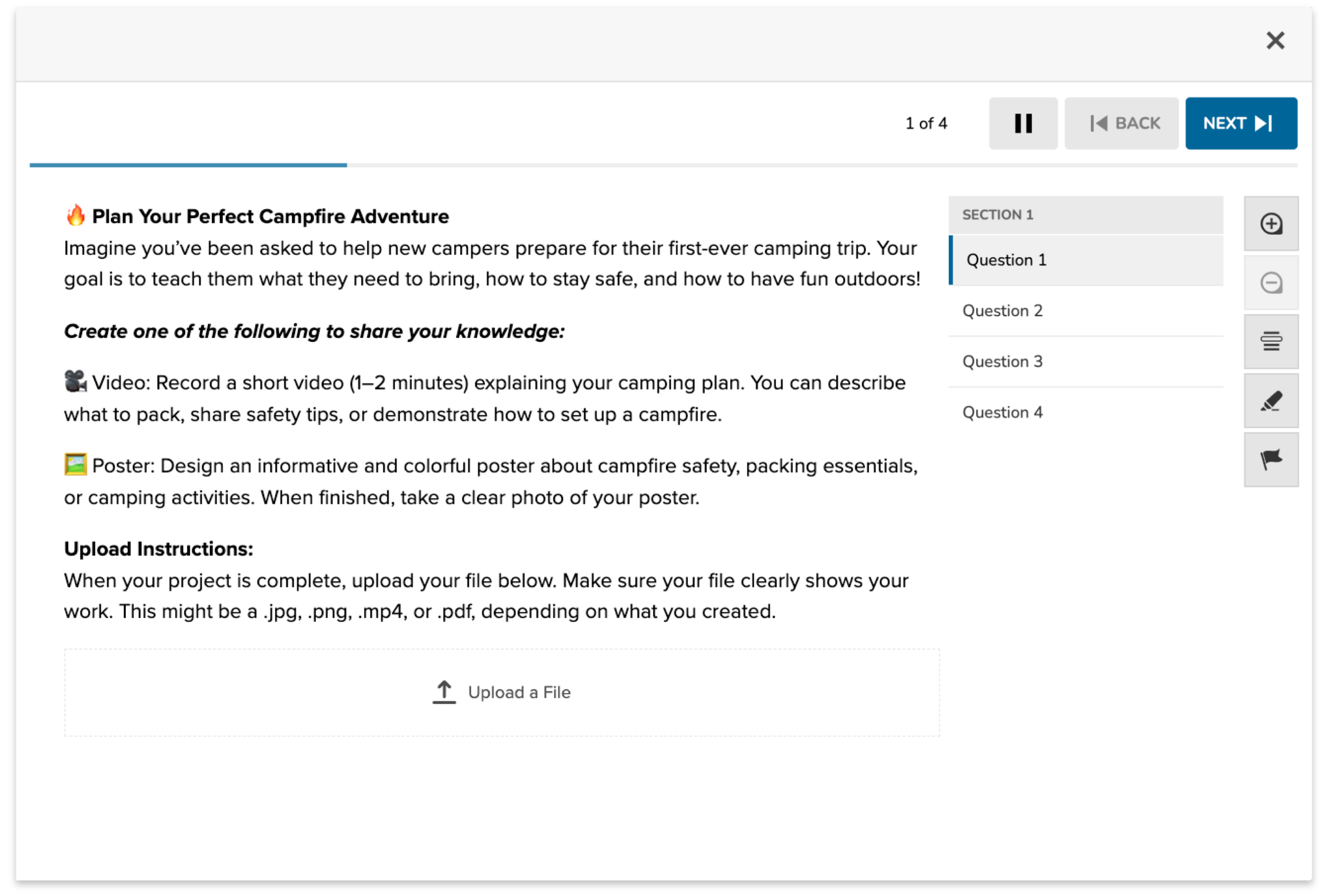
The File Upload item type allows students to submit a file as their response. This flexible format supports a wide range of student work, including written assignments, images, recordings, presentations, and multimedia projects. It’s especially useful when the response format goes beyond text; supporting creativity, extended work products, or alternative methods of demonstrating understanding. File Upload items are manually scored by teachers.
This item type expands how students can demonstrate learning, making it possible for them to share artifacts that reflect deeper thinking, problem-solving, or creative expression in their own formats.
Key Characteristics
- Students respond by uploading a file rather than entering a response directly in the platform.
- Authors can restrict allowable file types: Documents, Images, or Audio/Video.
- Ideal for extended projects, visuals, or media-rich submissions.
- Manually scored by teachers; not auto-scored.
- No in-platform editing—students must create and prepare their file externally before uploading.
Instructional Connection
File Upload items provide maximum flexibility in how students show what they know. This item type is particularly effective for:
- Visual or multimedia responses that demonstrate content understanding.
- Projects or performance assessments that require depth and personalization.
This format supports authentic and student-driven assessments, enabling learners to represent their thinking, creativity, and skills in a variety of ways.
Authoring a File Upload Question
Access the Question Editor
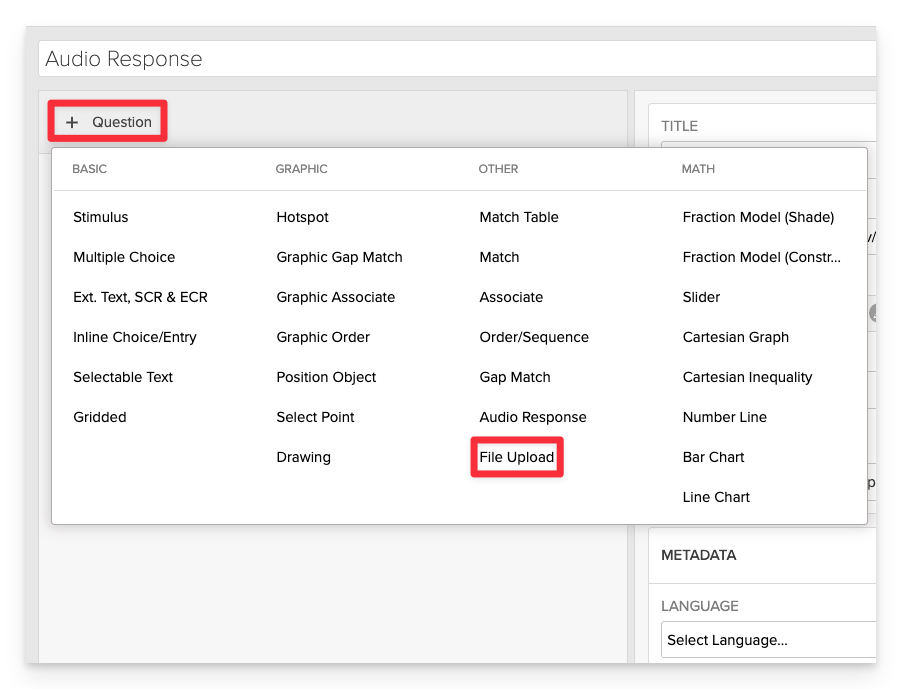
From the item editor, click on:
- Click on +Question.
- From the list of question types, select File Upload.
Enter the Prompt
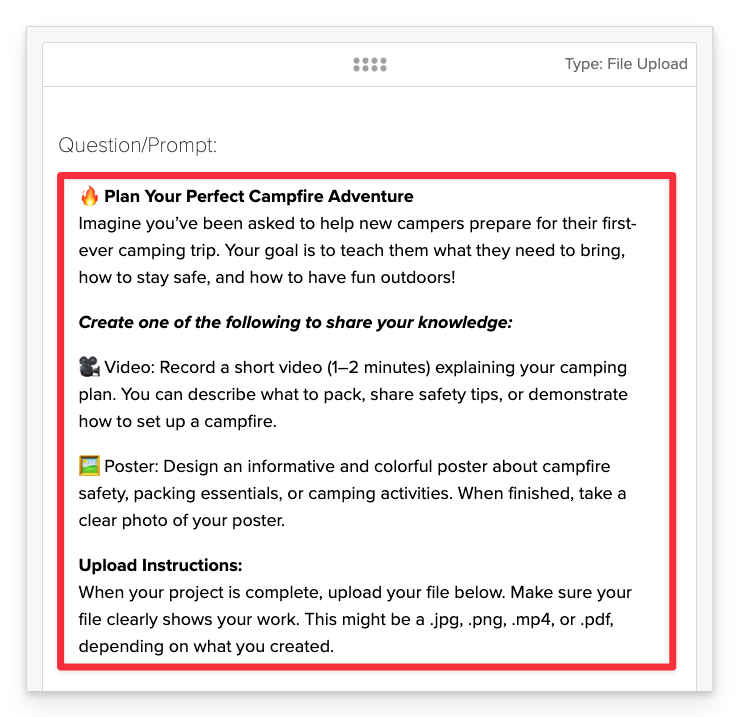
In the Prompt field, clearly describe the task or question you want the student to respond to. Be specific about what they should create or upload, and include any relevant instructions or expectations.
Scoring Configuration (Optional)
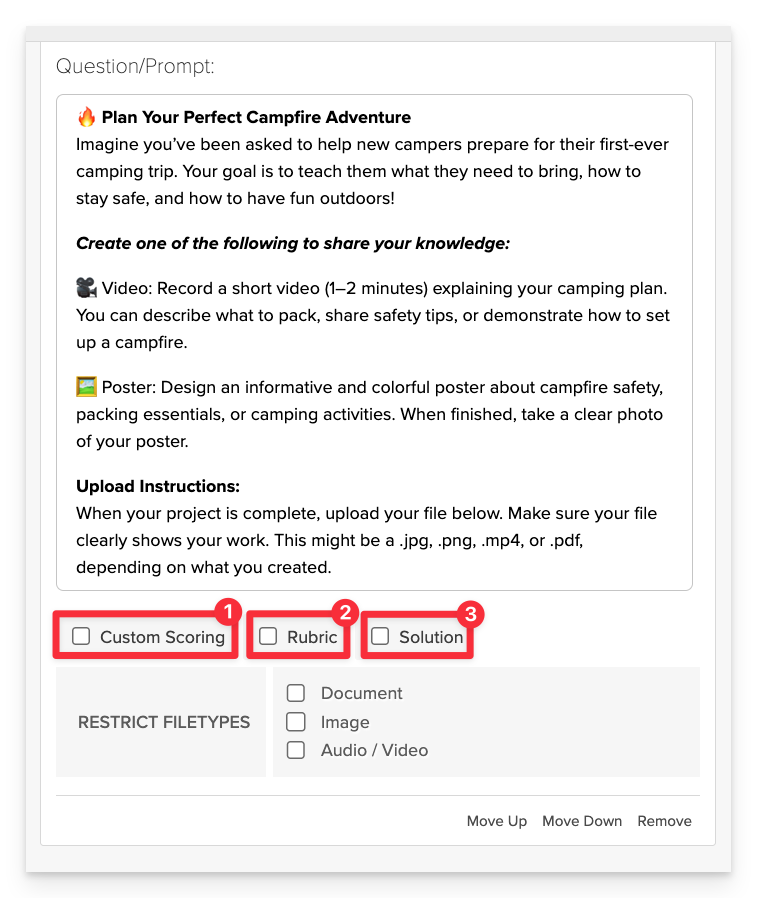
File Upload items are manually scored by teachers, however authors can provide guidance on scoring parameters via the following:
- Custom Scoring - Define how many points the item is worth.
- Rubric - Provide a scoring rubric to outline key criteria and performance levels, ensuring consistency across scorers.
- Solution - Provide a model or sample response to guide teacher scoring. This is for internal use and not shown to students.
Restrict Filetypes (Optional)
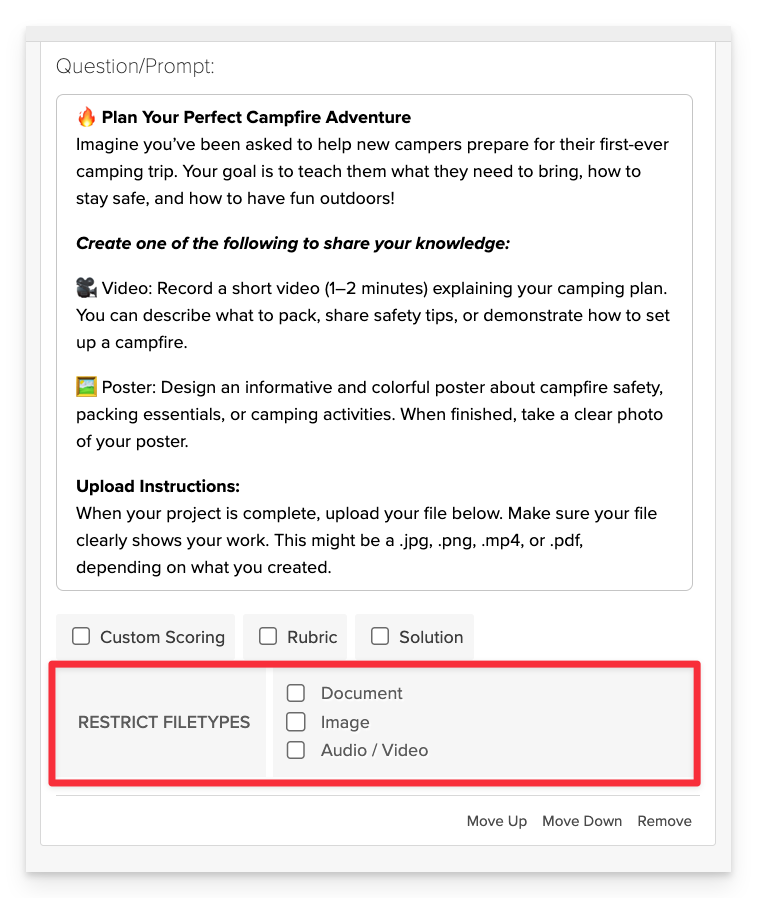
Authors can choose to limit which types of files students are allowed to upload by selecting one or more checkboxes: Document, Image, or Audio/Video.
If no options are selected, students will be able to upload any filetype.
Save the Item
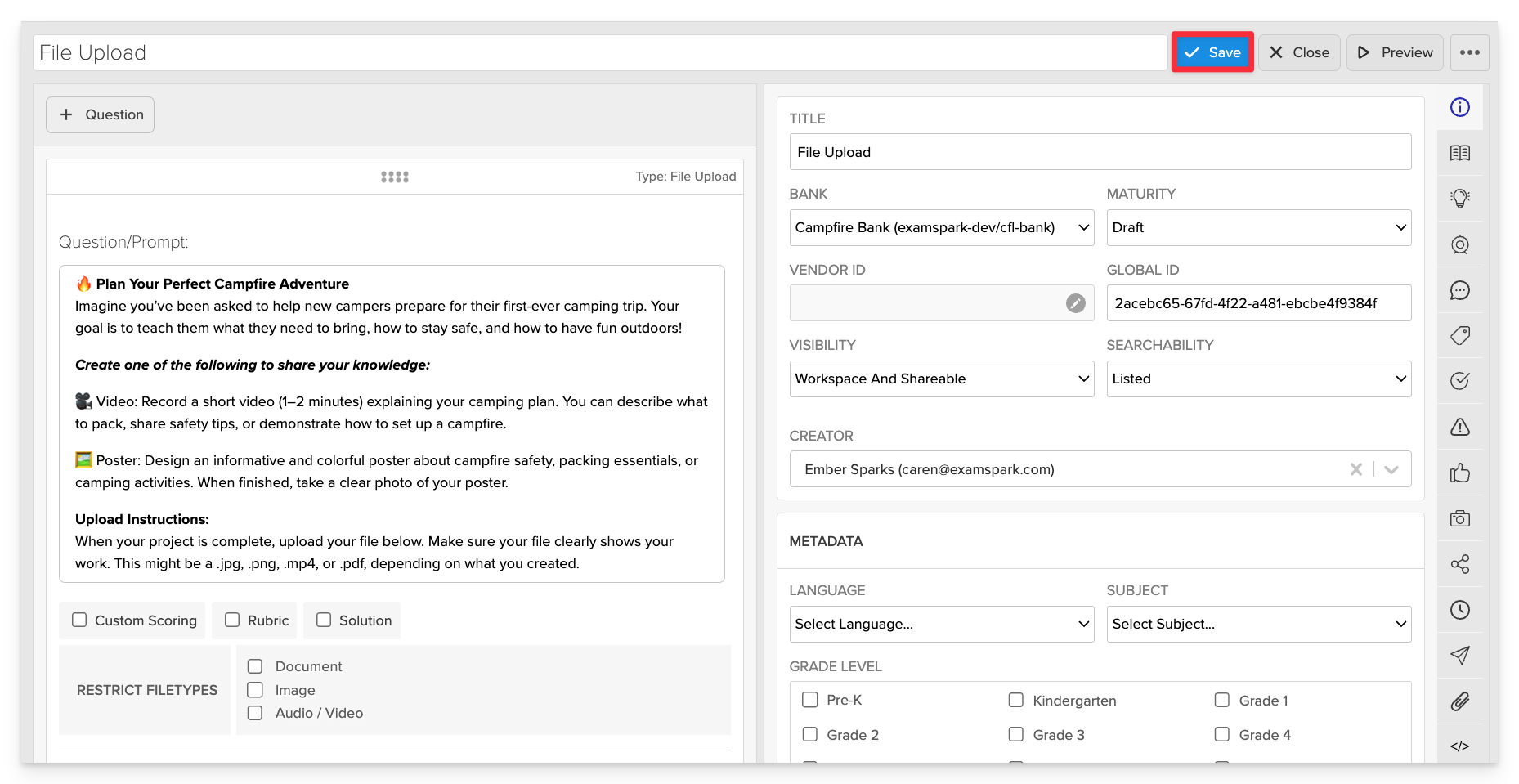
Click Save to store your item in Studio.