Translate an Item
Studio provides a powerful and intuitive way to translate your items directly within the system, ensuring seamless multilingual content management.
Select the relatives icon
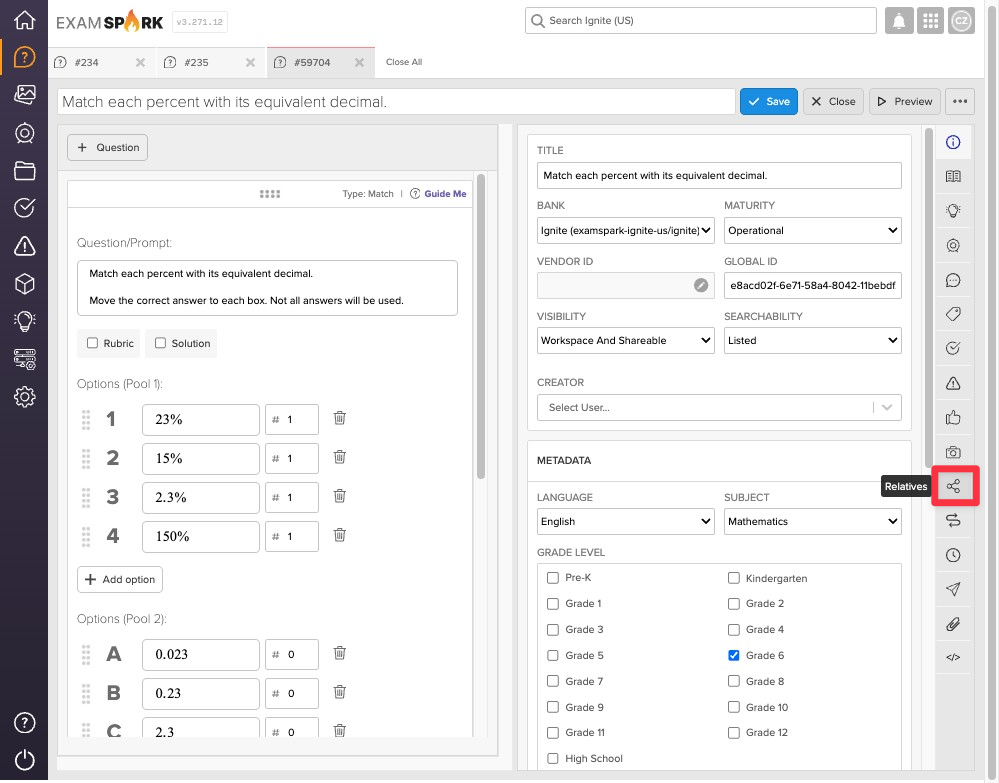
In the item editor, select the Relatives icon from the right menu.
Create a new translation
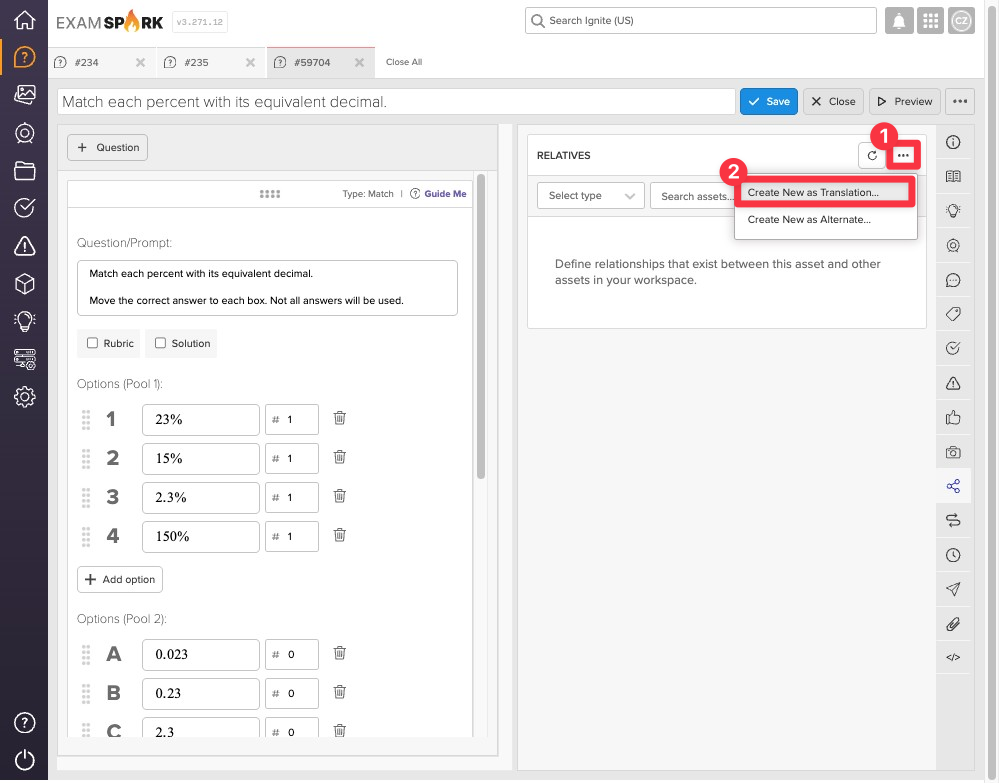
Select the more options menu (•••) [1] in the item editor, then choose Create New as Translation [2] to generate a translated relative of the item.
Initiate translation
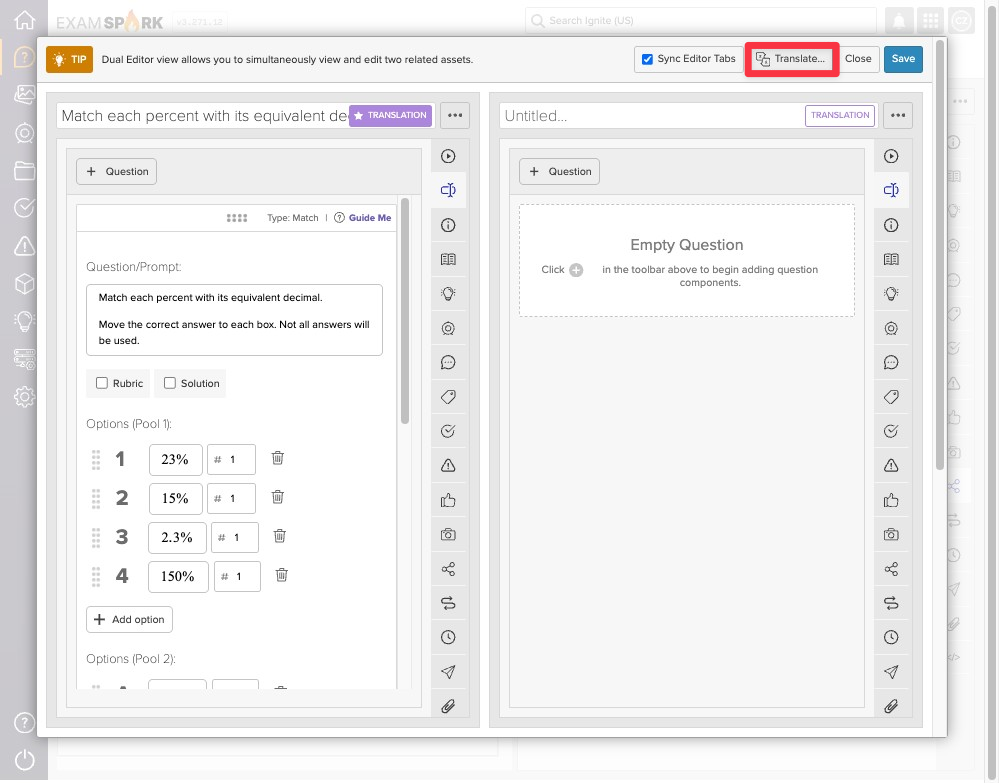
Click Translate to access the translation modal for the selected item.
Select language for translation
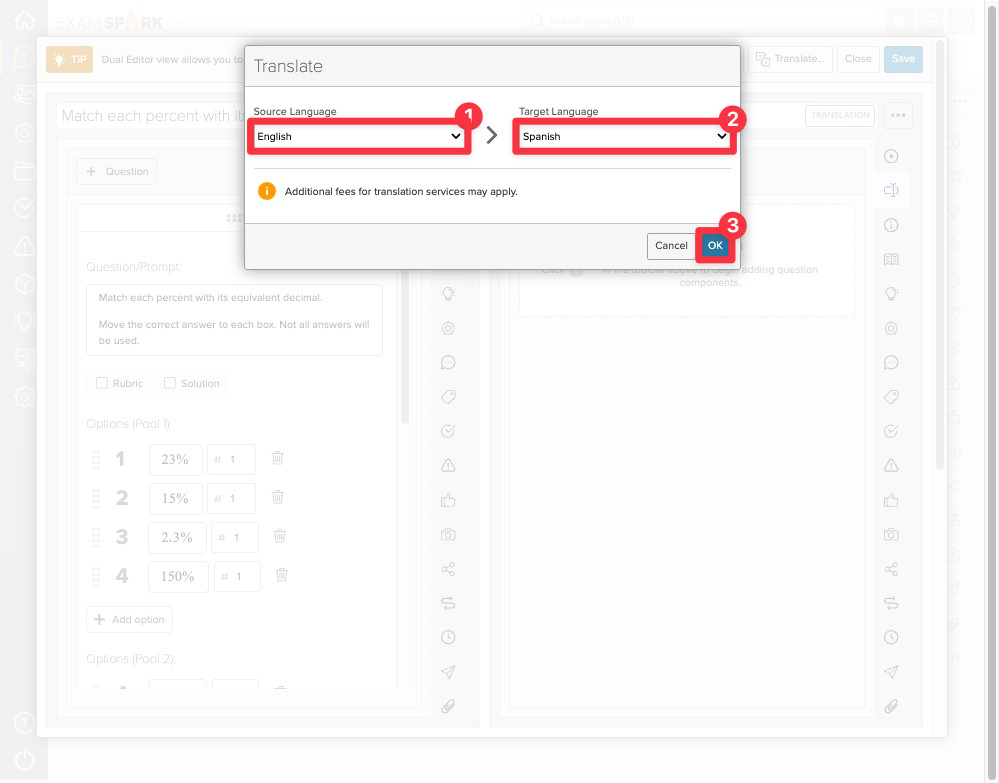
Choose your source language [1] and the target language [2] you want to translate to, then click OK [3] to proceed.
Additional fees for translation services may apply. Please speak to your Campfire Learning representative to discuss if translation services are included in your contract agreement.
Review and save the translation
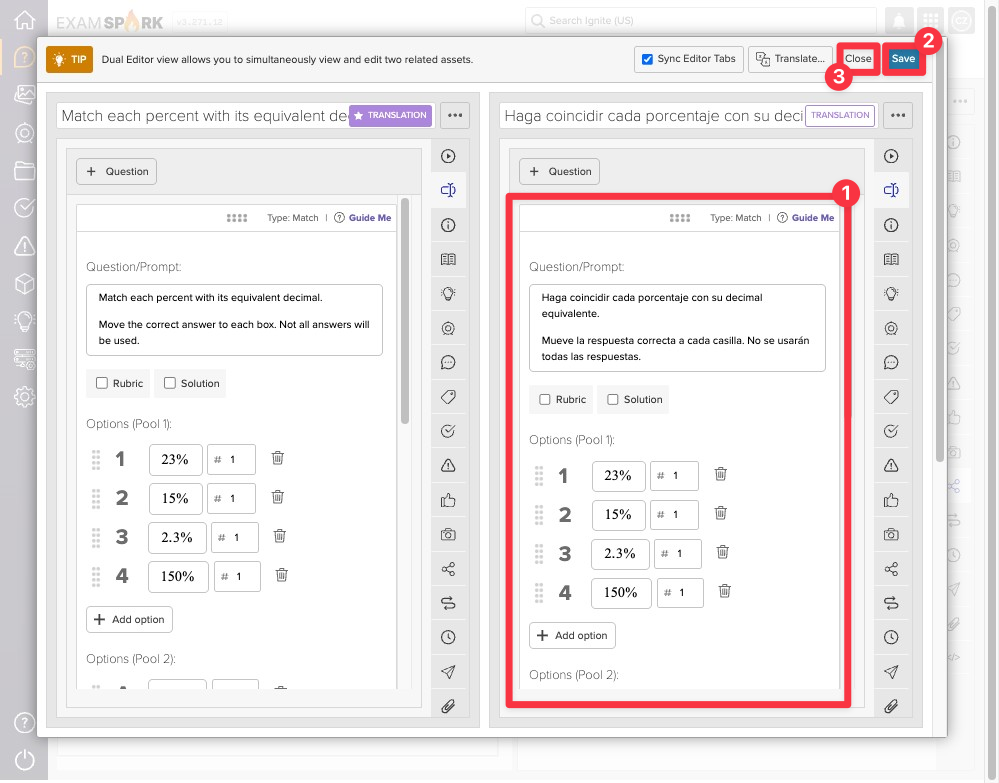
Use the dual editor view [1] to seamlessly compare the original and translated versions side by side. Once reviewed, click Save [2], then Close [3] to finalize the translation.
Keep in mind that it’s always advisable to review any computer-generated translations for clarity and accuracy before finalizing them.
View translated versions
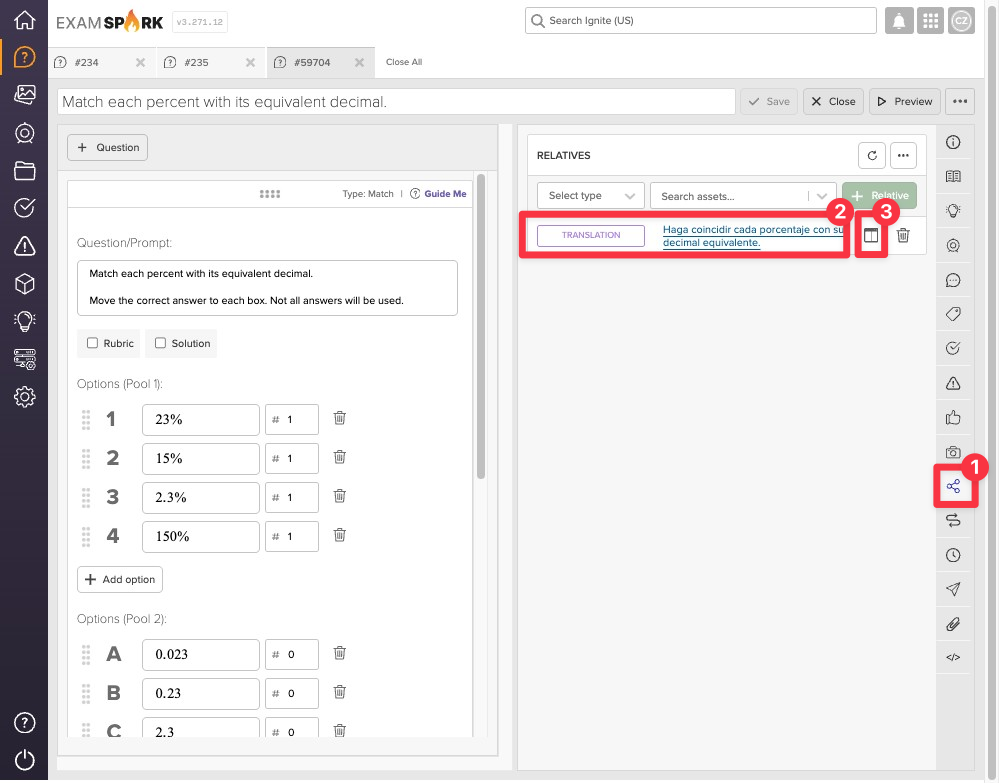
To access your translated item, click the Relatives [1] icon at any time to view all associated versions [2]. Click on the dual editor icon [3] to view and edit the relatives side-by-side.