Create an Assessment
In Campfire Classroom, you can create an assessment from the assignment modal or, in advance, from your library. Whether you start from the assignment modal or your library, the process for creating a new assessment is the same:
You can build assessments in Campfire Classroom by selecting questions from your item bank or, in some Campfire Classrooms, by creating your own questions from scratch.
This guide walks you through every step of the assessment creation process. Whether you're curating standards-aligned questions or designing custom content for your students, you'll have the tools you need to build meaningful, data-driven assessments.
We'll cover:
- Where to start when building an assessment
- How to browse and select questions from your item bank
- How to create your own questions (for supported classrooms)
- How to search by Passage
- Optional steps for working with reading passages
By the end of this guide, you'll be ready to confidently create and customize assessments that support student learning and provide actionable insights.
View Make an Assignment to learn how to assign your assessments to students
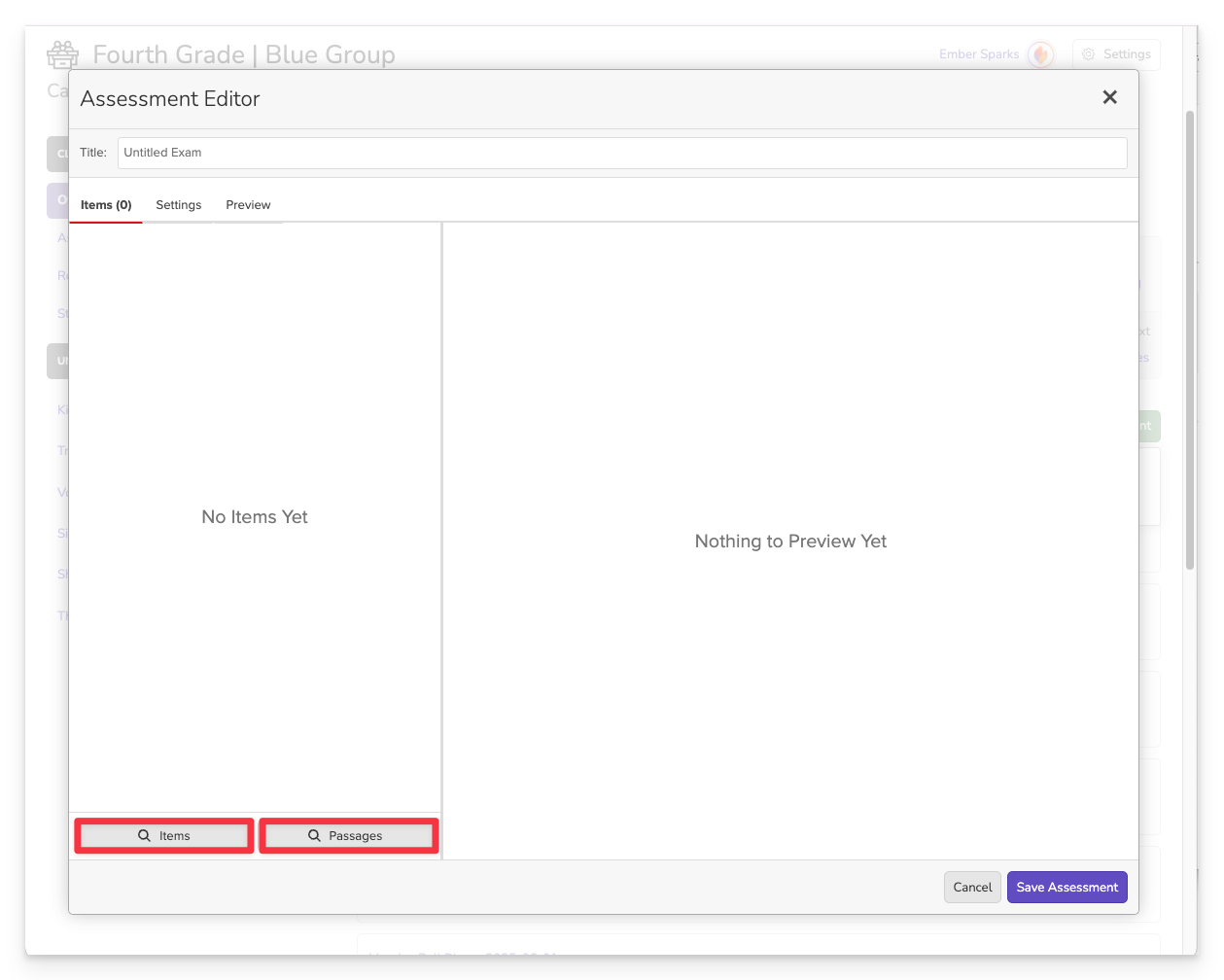
Use this to build your own assessment using items from the item bank.
Create a New Assessment
- Select From New Assessment.
- Choose how to build:
- Search Items: Manually filter and select items.
- Search Passages: Ensure all selected items are tied to the same central passage(s).
Choose How to Build Your Assessment
Search for Items or for Passages
- Search Items
- Search Passages
Launch the Item Picker
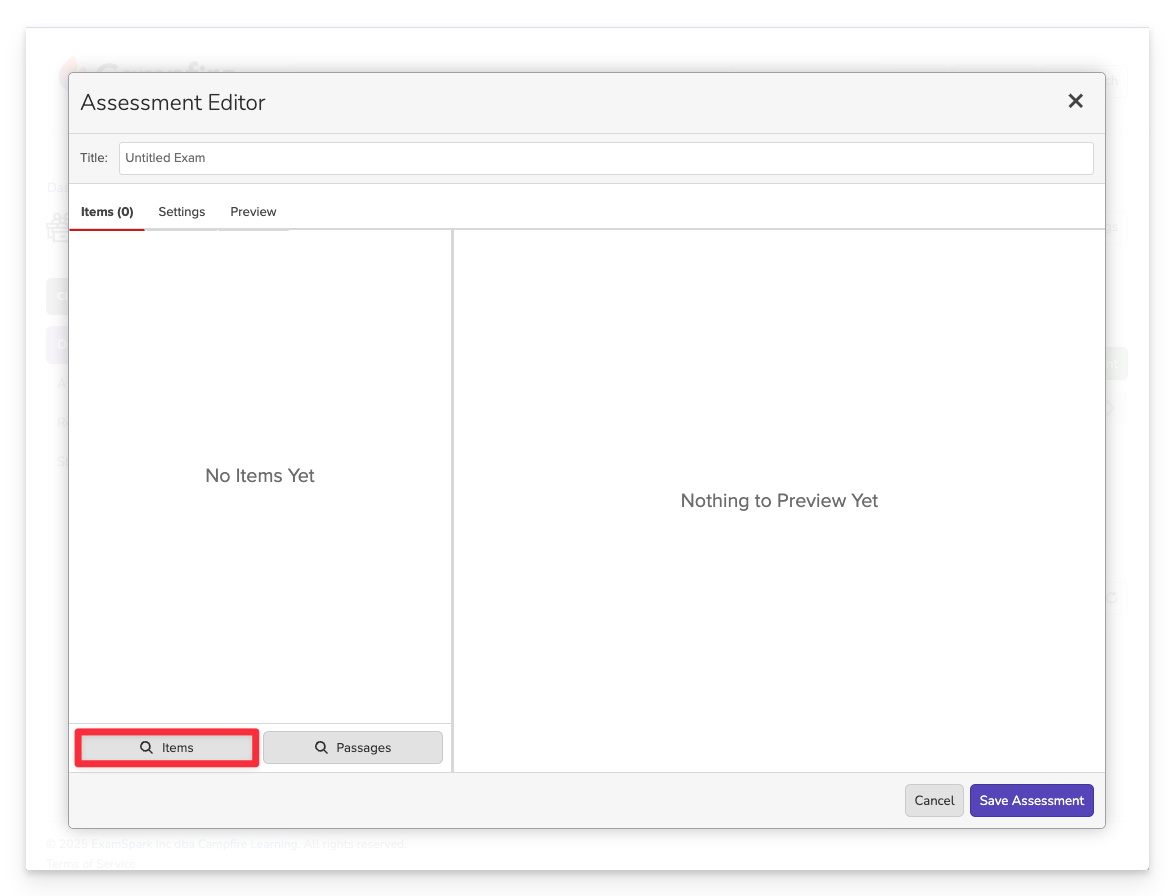
Choose Items as your method for creating the assessment.
Filter Content
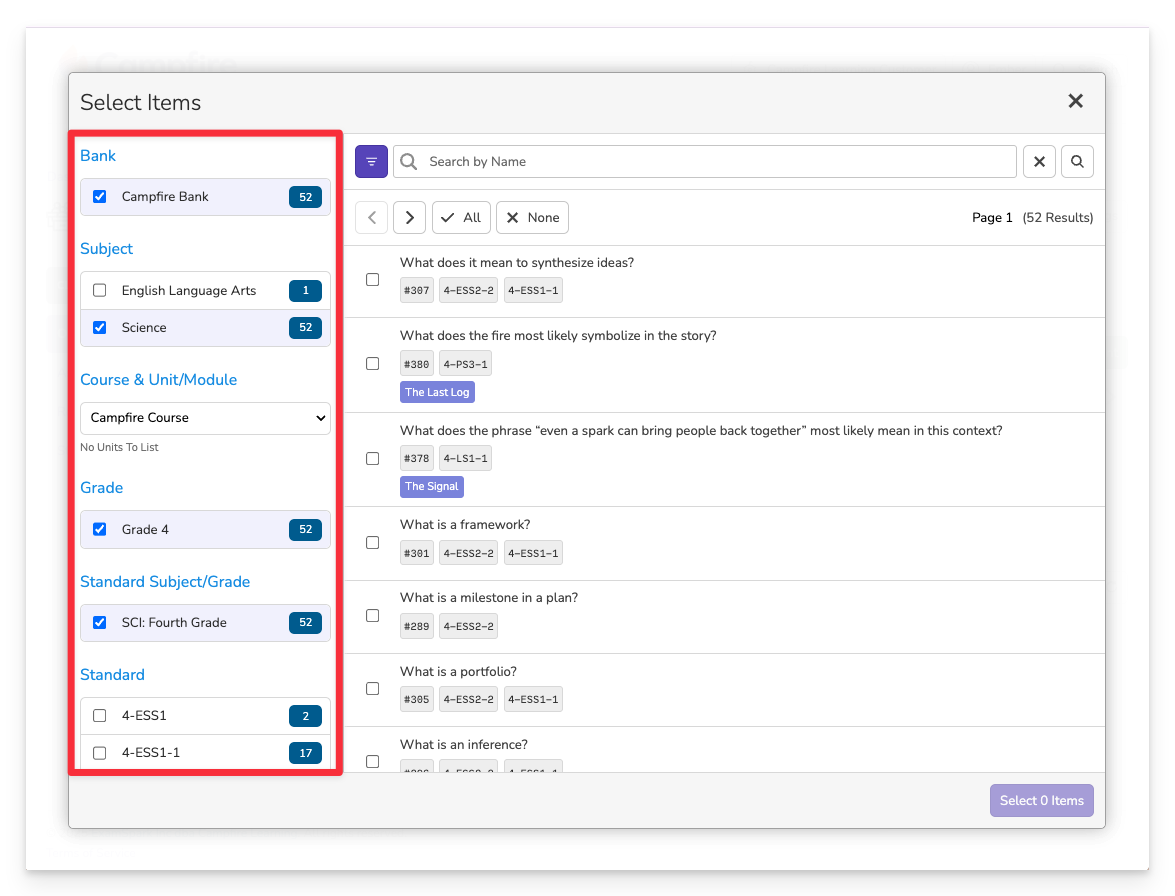
Use the filters on the left side of the screen to narrow down items by grade, subject, standard, item type, and more.
Preview Items
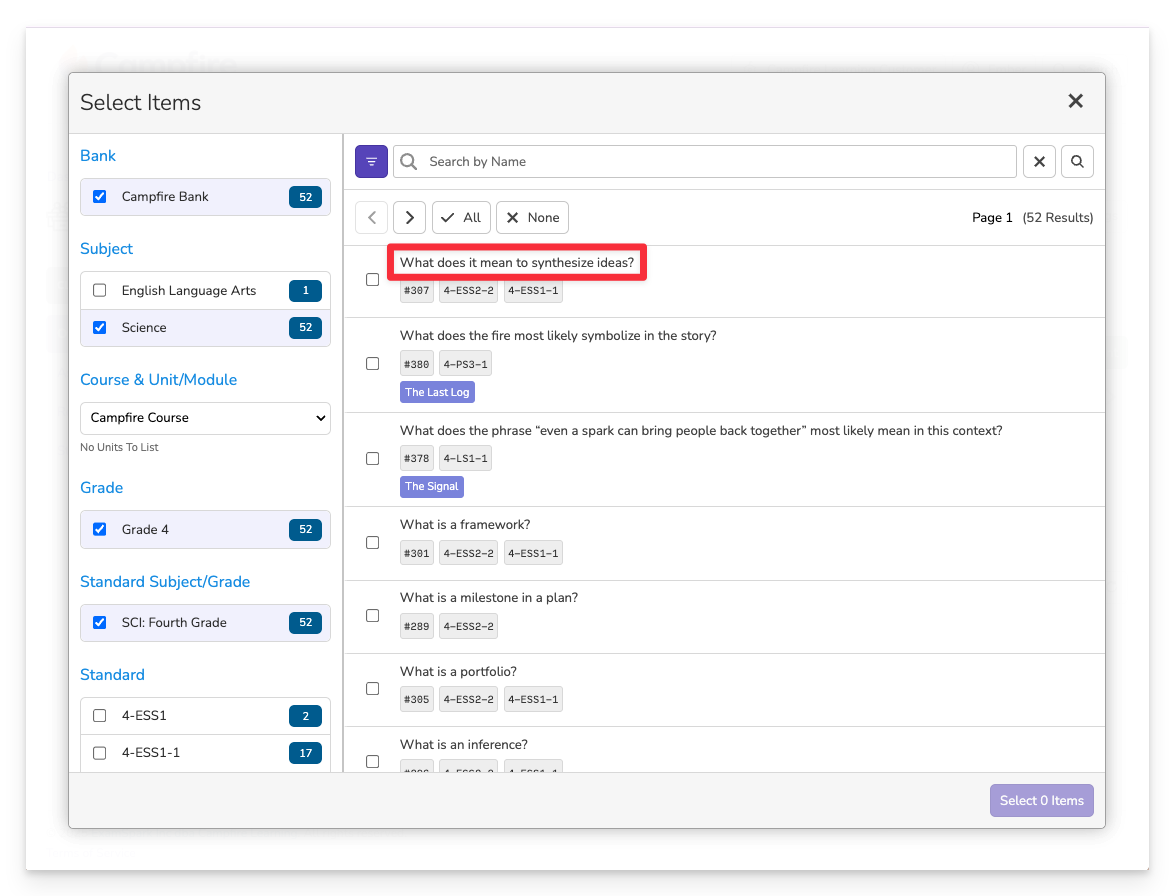
Click on any item to view a full preview, including the question, answer choices, etc.
Explore the Assessment Preview
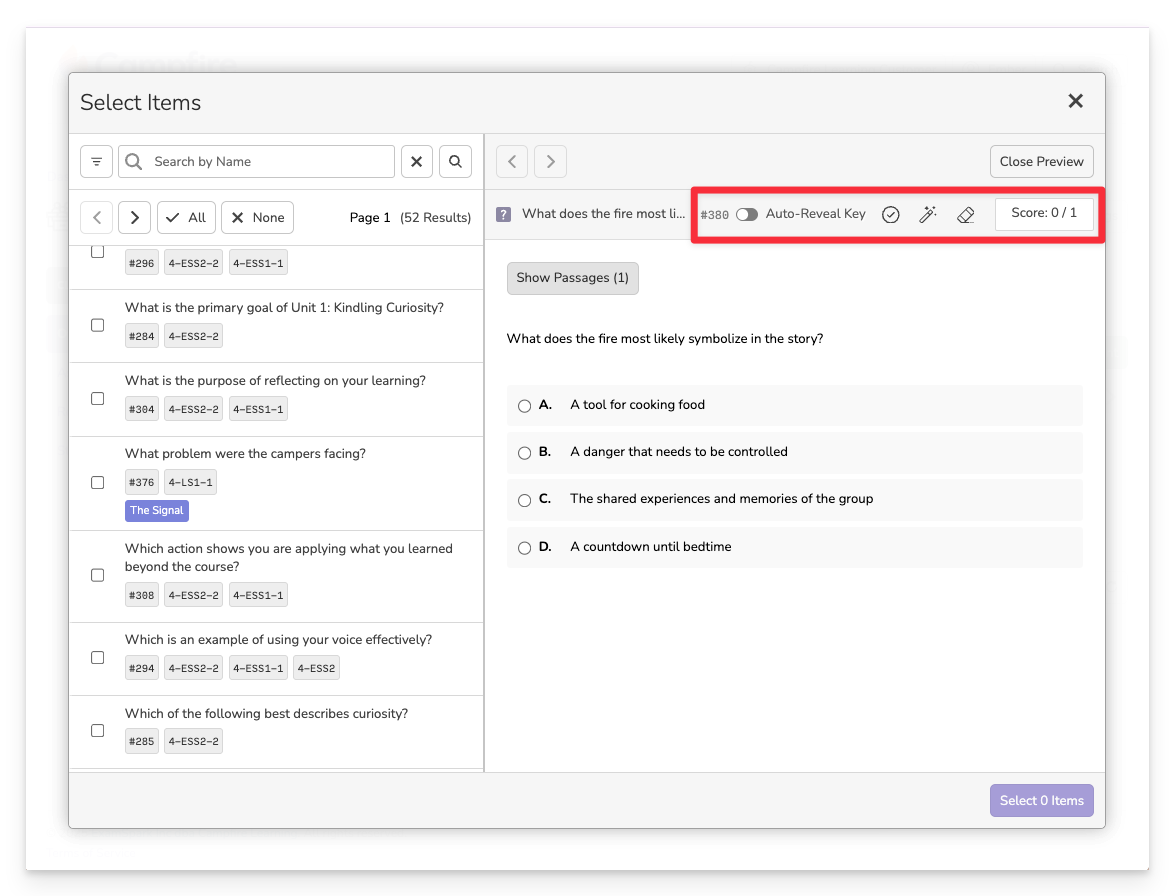
Within the preview, you can:
- Reveal the correct answer key.
- Click on an answer choice to check your understanding.
- View preset scoring rules for the item, such as point values or partial credit criteria.
Select Items Using Checkboxes
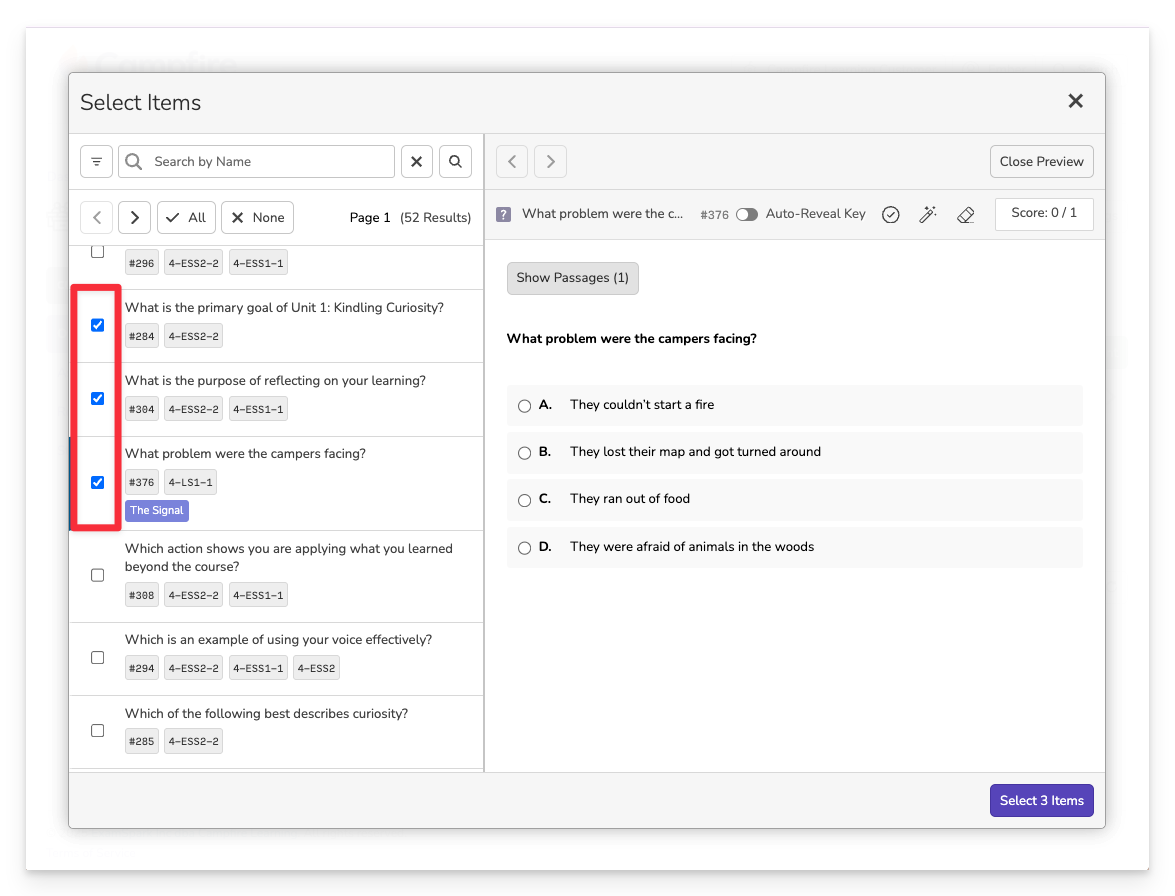
- Use the checkboxes next to each item to select the ones you want to include in your assessment.
- After choosing your items, click the Select Items button to add them to your assessment draft.
You can continue filtering and adding more items to your assessment by changing filter settings and repeating the selection process.
Organize and Customize

After importing your items:
- Rearrange items to change the order in which they appear.
- Swap or delete items using the icons next to each one.
- Group items by passage to ensure they remain aligned with their corresponding text.
- Add more content by selecting additional passages or more items at any time.
- Preview item details including the correct answer key, interactive answer checking, and preset scoring rules such as point values or partial credit criteria.
Title Your Assessment

Before you can save and assign your assessment, you must enter a title for your assessment.
Future you will appreciate a clear and descriptive title for your assessment.
Set the Subject
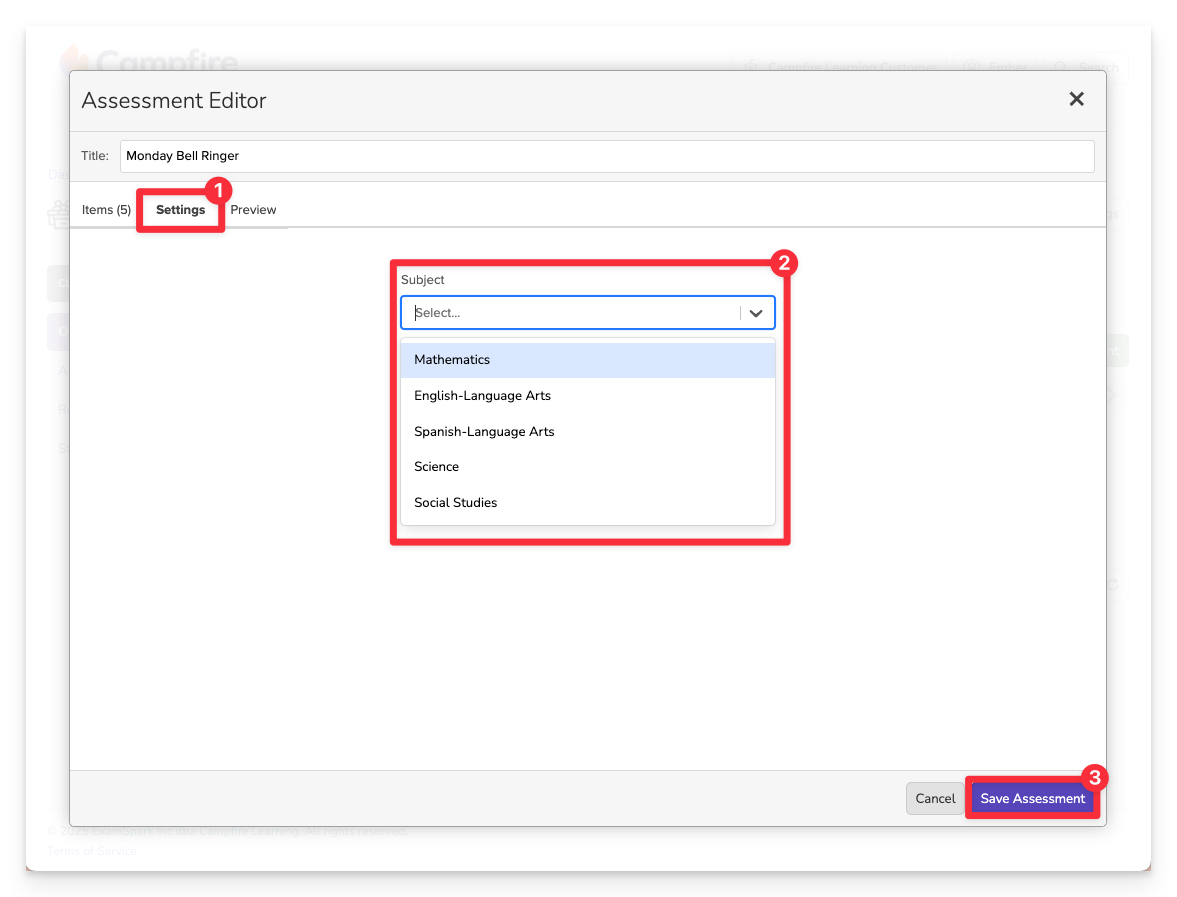
-
In the Settings panel:
-
Choose the appropriate Subject for your assessment.
Some Classrooms may also allow you to save your Assessment to a specific Unit
-
Click Save Assessment
Launch the Passage Selector

Choose Passages as your method for creating the assessment.
Filter Passage Content
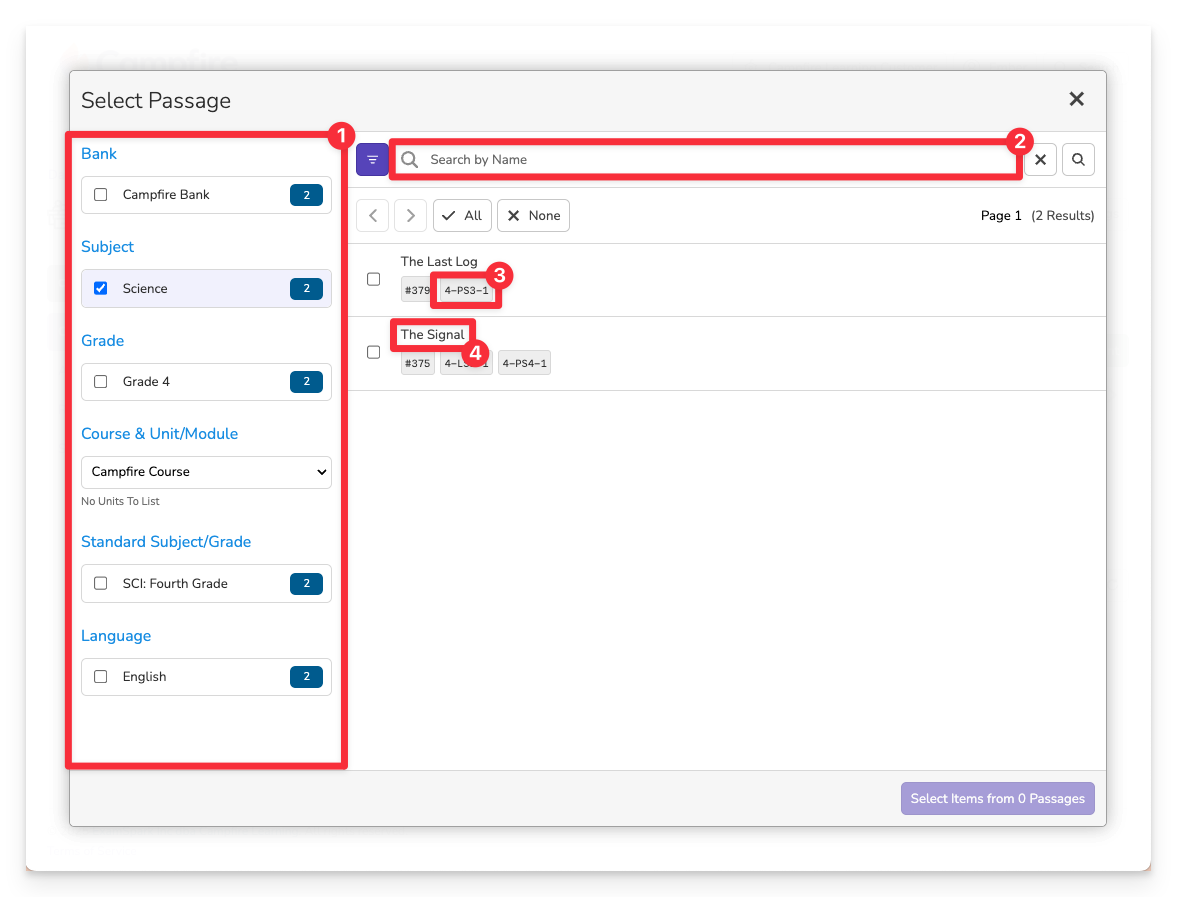
Use the [1] left filters or [2] search bar to find a passage by keyword, subject, grade, or standard, etc.
- The tags below the passage show which Learning Standards are assessed in the items associated to the passage.
- Click a passage to preview it and the items associated with it.
Add the Passage
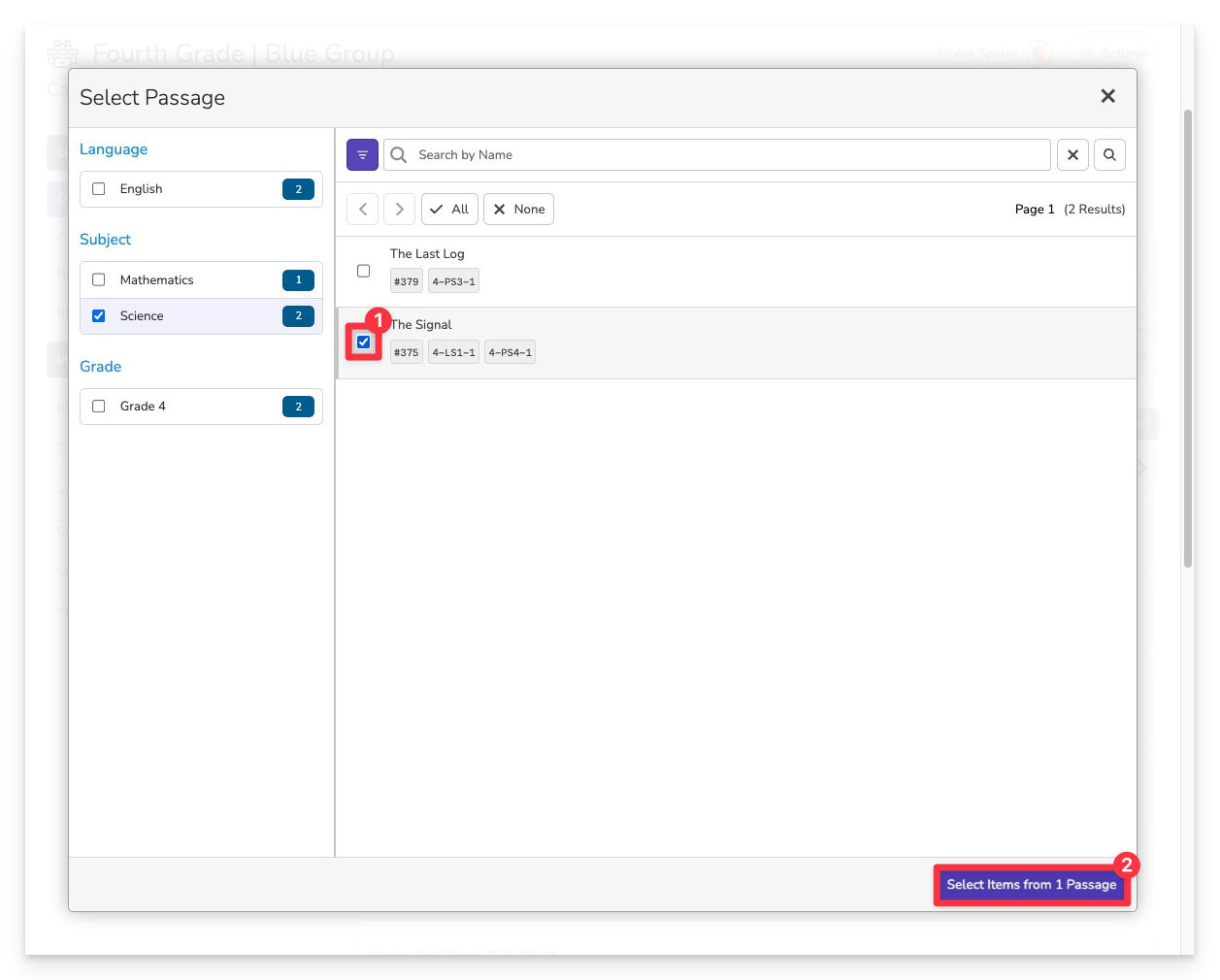
To add a passage and all items linked to it:
- Click the checkbox next to the passage name.
- Click Select Items from (1) Passage.
You can select multiple relevant passages to give yourself a broader pool of aligned items to choose from. Just remember—each passage will need to be read by students, so choose the number of passages thoughtfully.
Organize and Customize
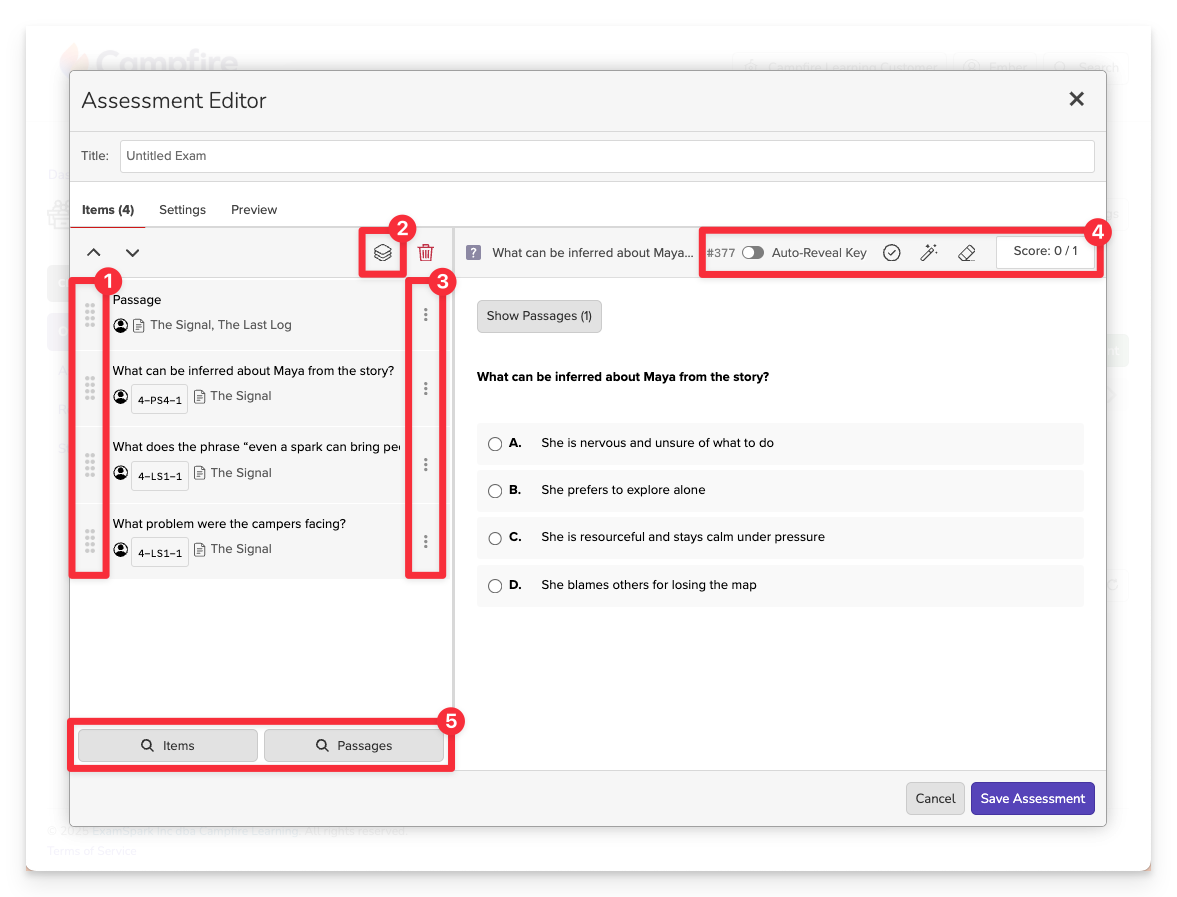
After importing your passages and items:
- Rearrange items to change the order in which they appear.
- Group items by passage to ensure they remain aligned with their corresponding text.
- Swap or delete items using the icons next to each one.
- Add more content by selecting additional passages or more items at any time.
- Preview item details including the correct answer key, interactive answer checking, and preset scoring rules such as point values or partial credit criteria.
Title Your Assessment
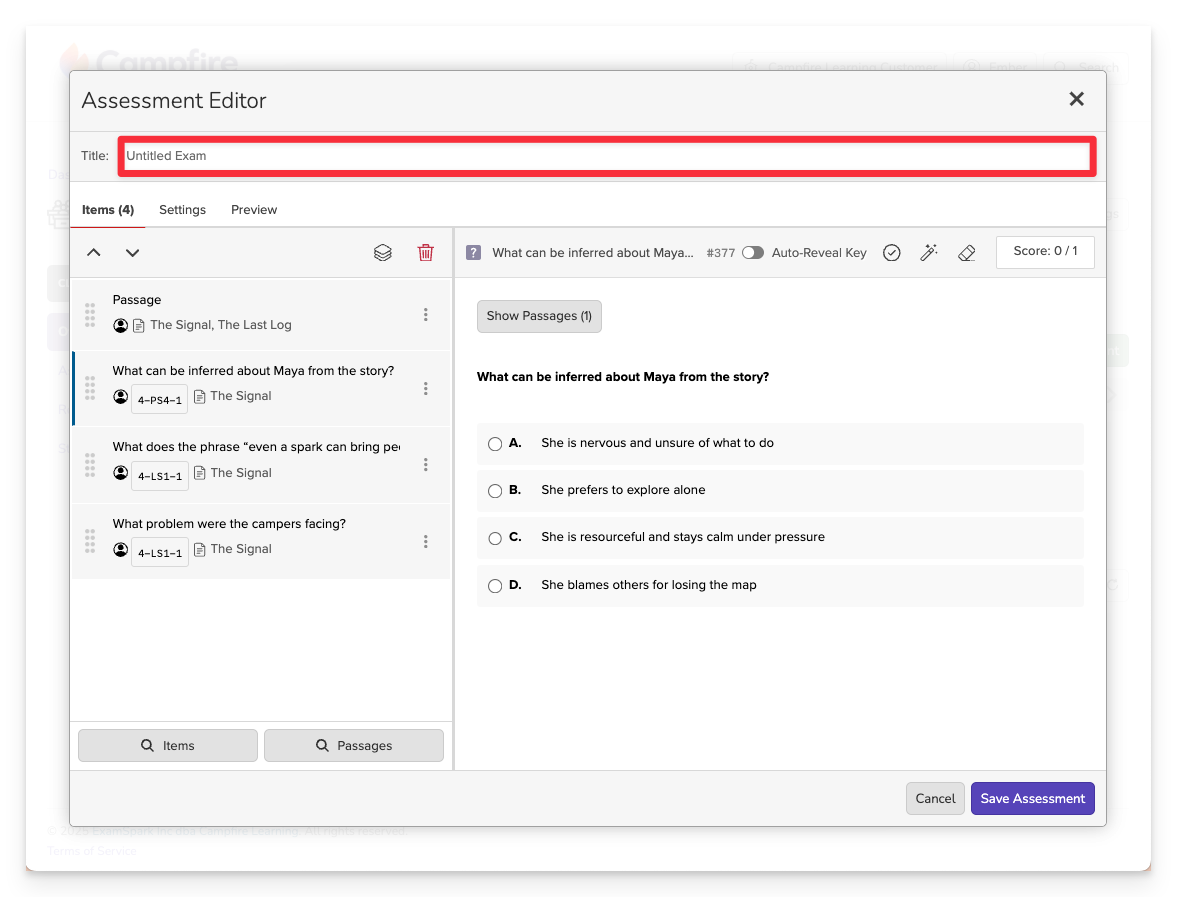
Before you can save and assign your assessment, you must enter a title for your assessment.
Future you will appreciate a clear and descriptive title for your assessment.
Set the Subject
-
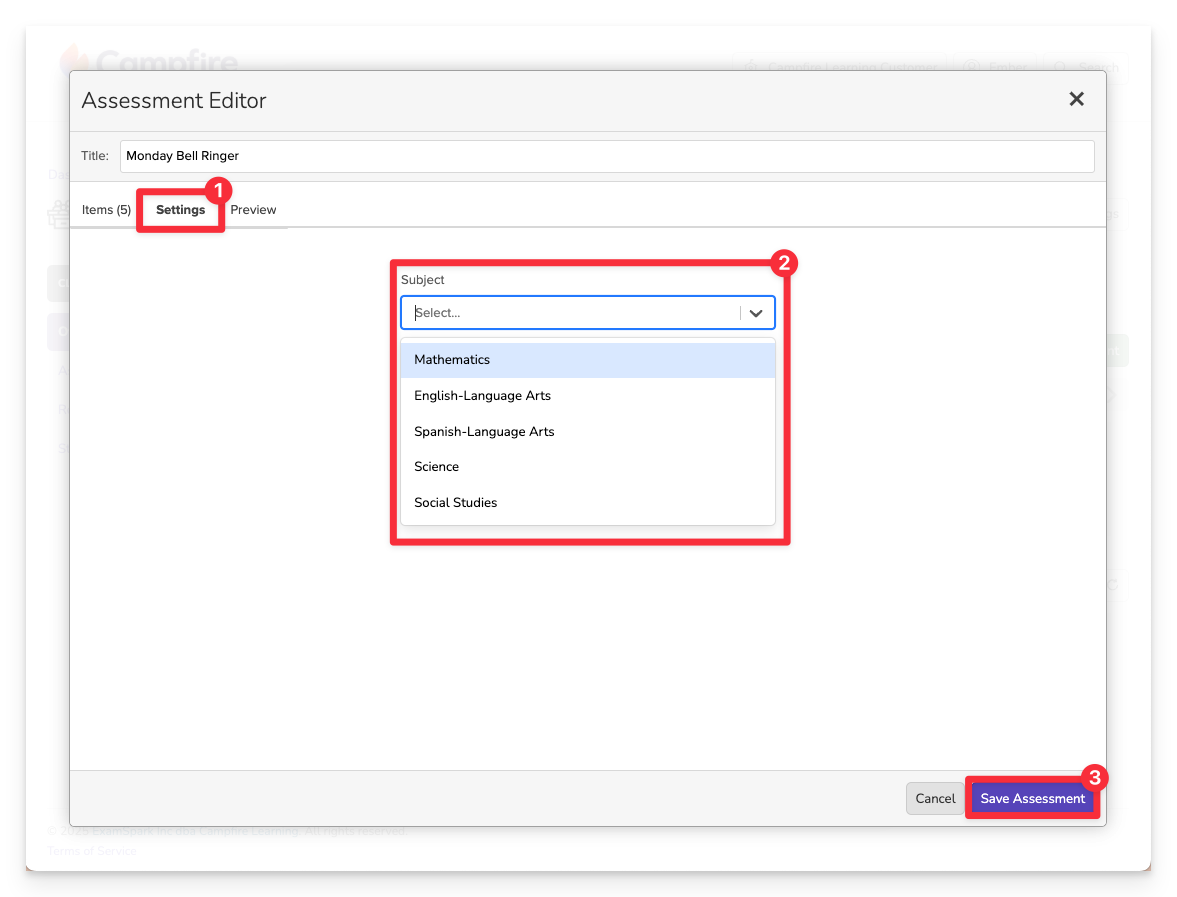
In the Settings panel:
-
Choose the appropriate Subject for your assessment.
Some Campfires may also allow you to save your Assessment to a specific Unit
-
Click Save Assessment
Once you’ve built your assessment, it will appear in your My Library. Now, you can assign it to students when you're ready.
To deliver your assessment, follow the steps in our Make an Assignment document for pushing content to your classrooms.
After assigning, use the Classroom Overview, Standards Mastery, and Assignment Details views to monitor progress, analyze performance, and plan your next instructional steps.
Need help editing, reassigning, or reviewing results? Explore our help articles for more support. You're ready to launch learning in Campfire Classroom!