Register for Campfire
To access Campfire for the first time, you’ll need to complete a quick registration process. This ensures that you have a Campfire account, and that it is linked to the correct workspace.
This guide is for users accessing Campfire as a standalone app or through integration with Google Classroom. If your institution uses an LMS (Learning Management System) with LTI integration, please follow your LMS’s specific instructions for accessing external tools like Campfire.
Access Registration
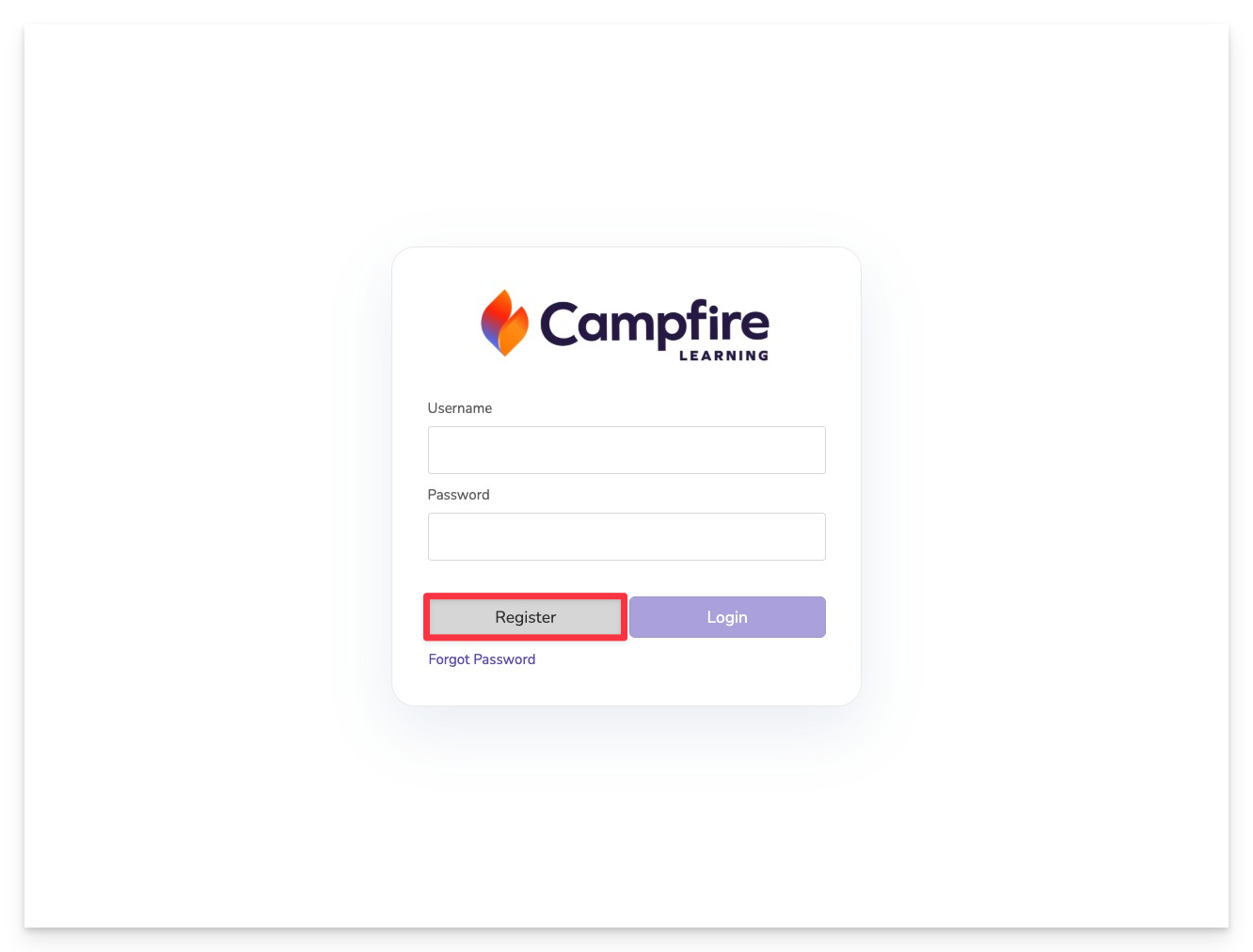
Get started by launching the publisher-specific Campfire application on your device.
- The naming convention should follow publisher.campfire.app
On the login screen, click the Register option.
Begin User Registration
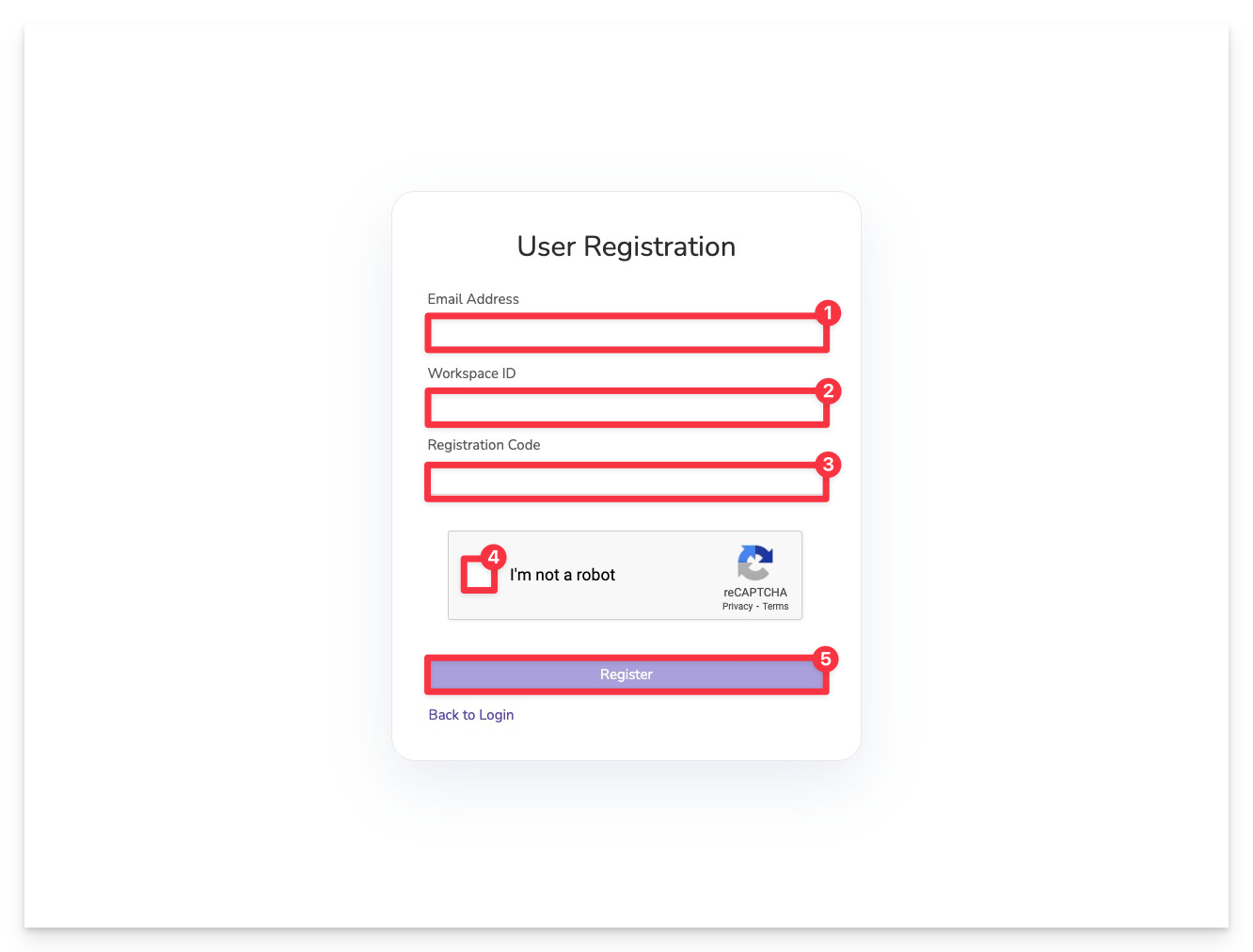
Enter Required Information
- Institution Email Address – Use your official school or organization email.
- Workspace ID – Provided by the publisher to your district or content administrator.
- Registration Code – Also provided by the publisher to your district or content administrator.
- Complete CAPTCHA
- Submit Your Registration - Click Register to move on to the following registration process step.
Not sure where to find the workspace credentials? This information was provided to your content administrator in their welcome email. If you do not have this information, please contact your campus content administrator or contact the publisher team for support.
If you use another application that uses Campfire Learning accounts, or if you are a current Campfire user in another workspace, you will be asked to provide your current password, and the new workspace will be added to your profile. You are now ready to start exploring your next Campfire workspace. To learn how to set up your first classroom and begin assigning activities, check out our Welcome to Campfire Guide.
If you are a completely new user, you will be prompted to complete the registration form. Instructions continue below.
Complete the Registration Form
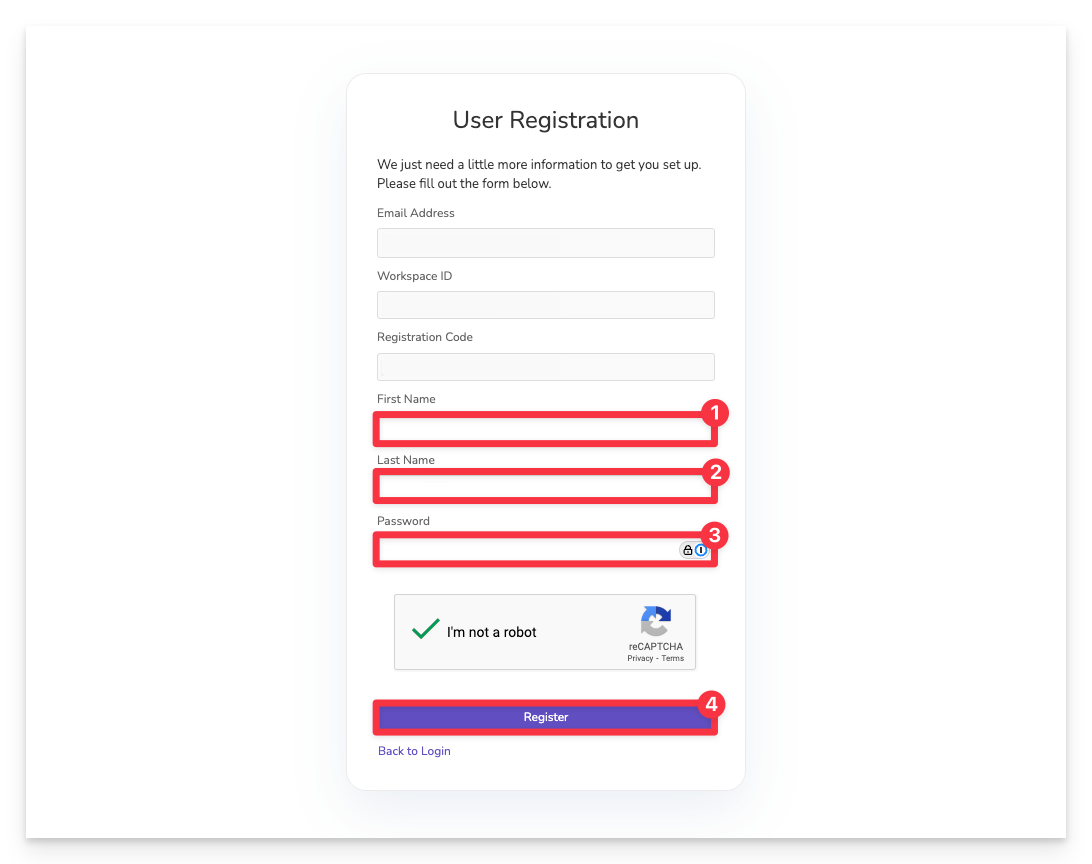
- Enter your First Name
- Enter your Last Name
- Create a unique password for your Campfire account
- Click Register to finalize your account and access Campfire
Once you click Register, check your email for your Confirmation Code.
Enter Your Confirmation Code
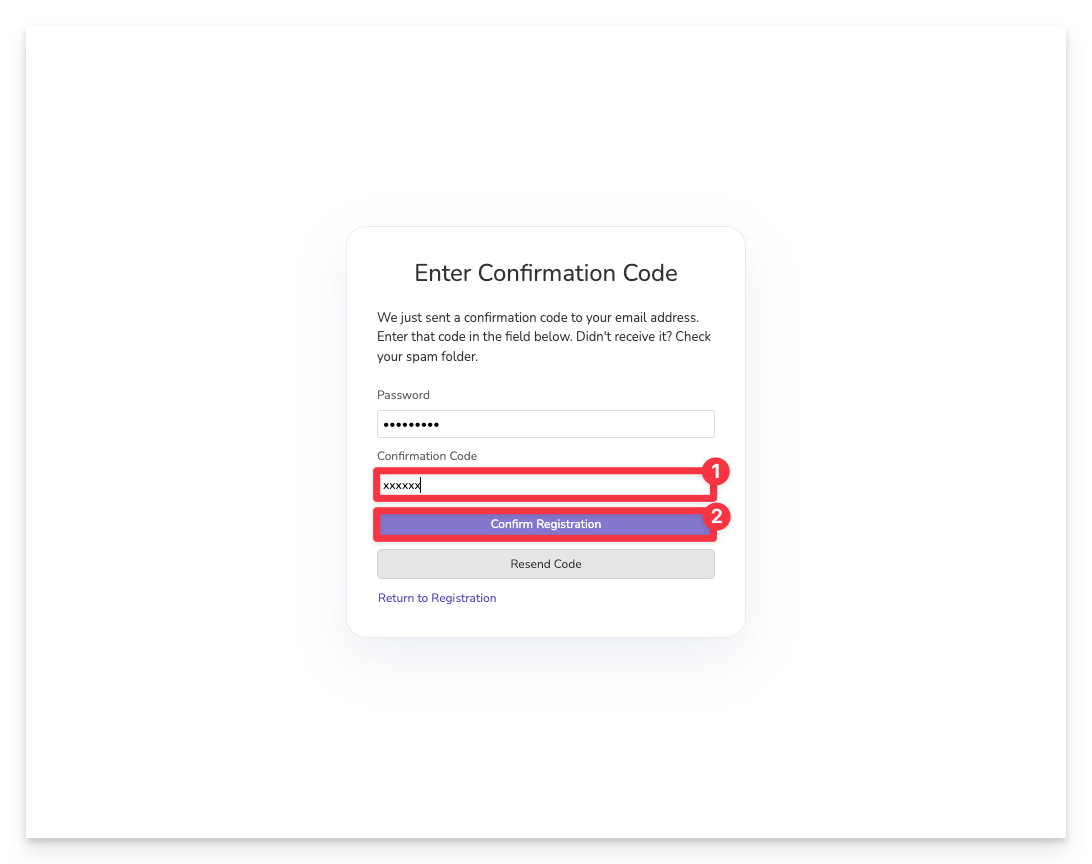
Once you click Register, check your email for your Confirmation Code.
- Enter your Confirmation Code
- Complete your registration by clicking Confirm Registration.
If you do not see your confirmation code, be sure to check your spam folder.
You're all set! Once you've registered, you're ready to start exploring Campfire. To learn how to set up your first classroom and begin assigning activities, check out our Welcome to Campfire Guide.