Assign an Assessment
What is an Assignment?
In Campfire Studio, an assignment is a deliverable learning activity. Assignments enable you to schedule, distribute, and receive student submissions on individual pieces of content.
Why It Matters
Assignments help instructors quickly deliver curated content- such as a quiz, practice task, or instructional check-in—to students. This focused structure keeps delivery simple and ensures clean performance tracking.
Assignments also connect to real-time mastery views, enabling insight into how students are progressing toward learning goals without extra data prep.
Start a New Assignment
Click the +Assignment button from any location where it's available—this includes your Home Dashboard and within individual Classroom workspaces.
This will open the assignment creation flow, where you’ll attach content and configure assignment settings.
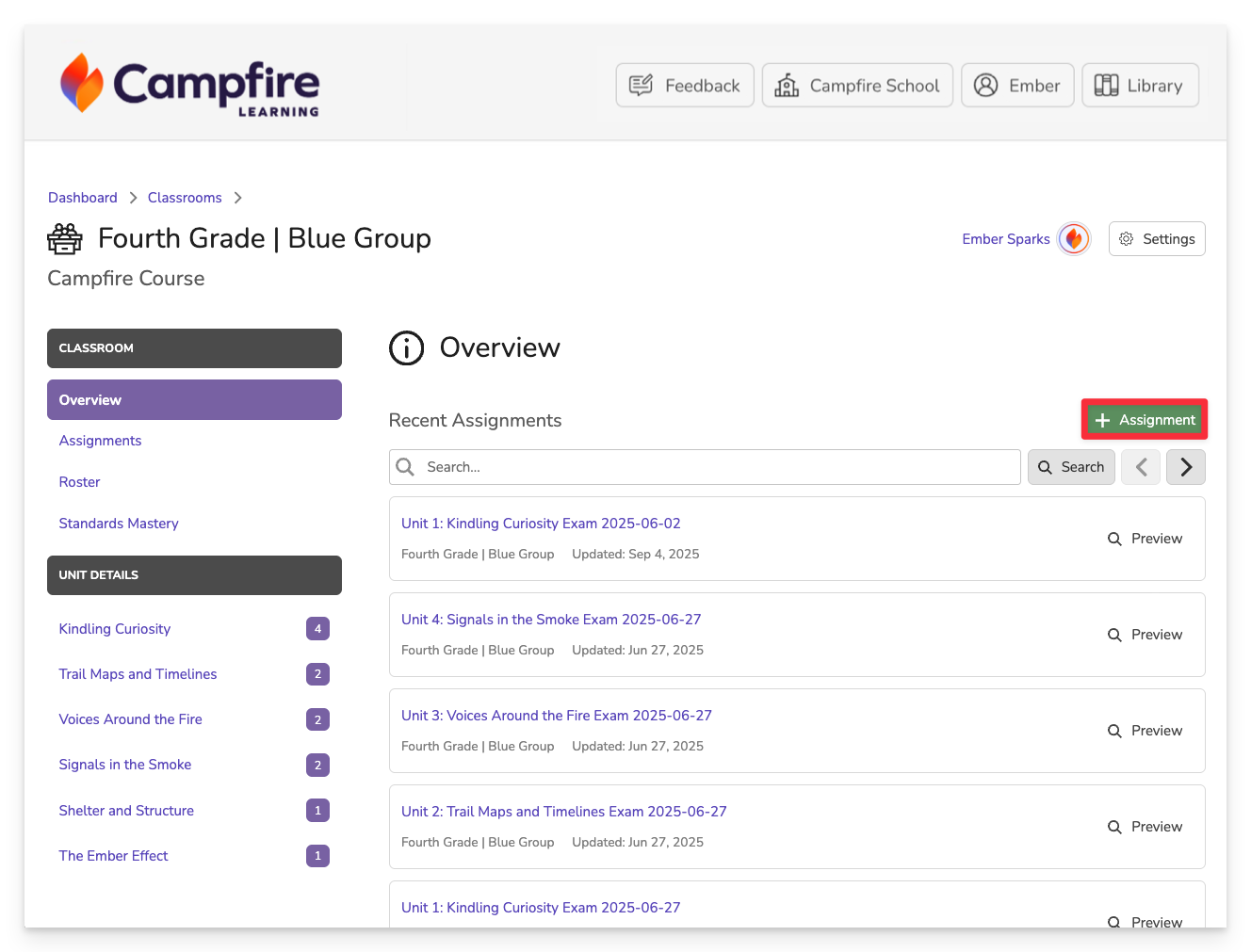
If you're assigning directly from the Library, the selected content will already be attached to the assignment. The rest of the process remains the same.
Fill in Basic Information
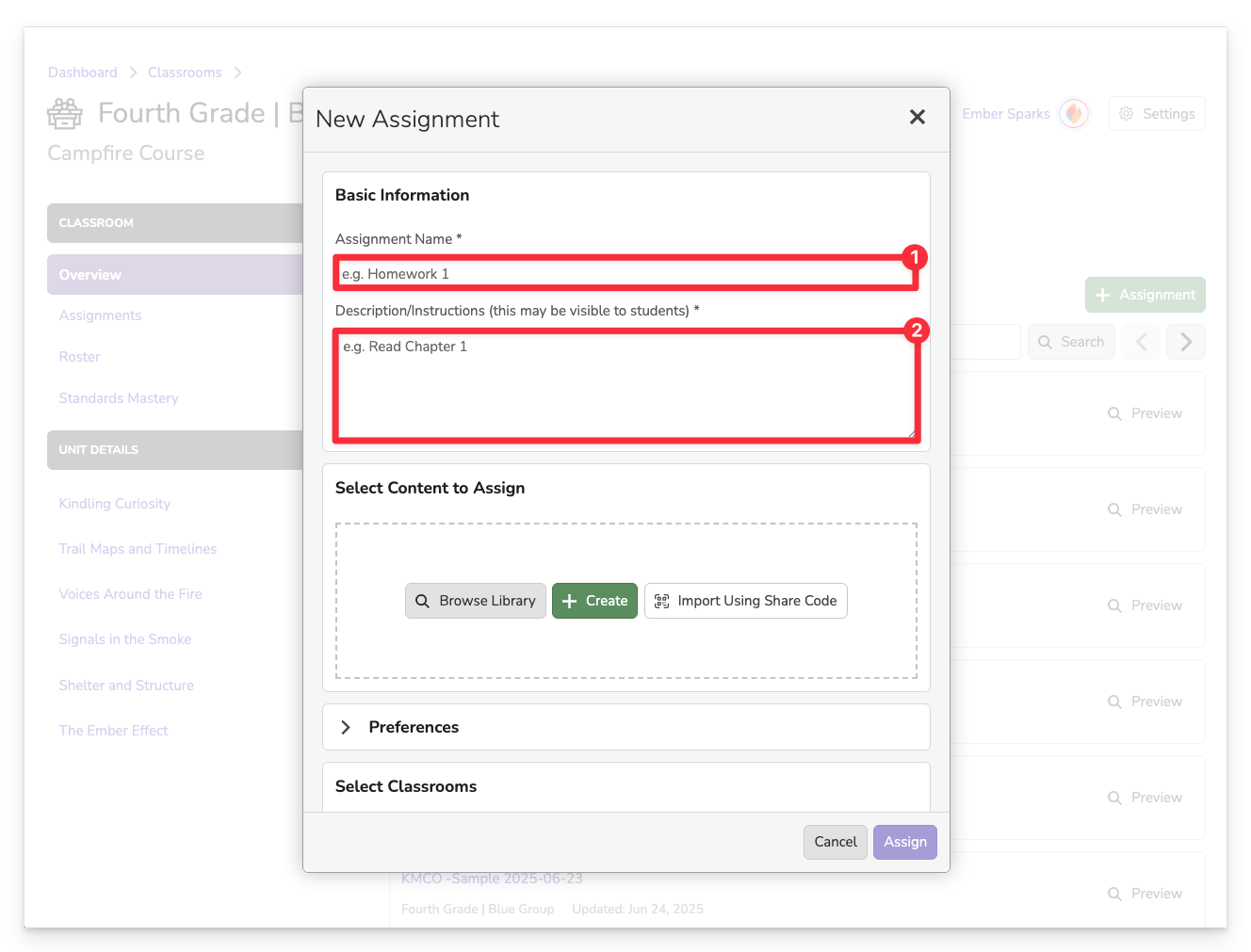
Enter:
-
Assignment Name
-
Description/Instructions
(Note: Depending on your Campfire Classroom setup, this may or may not be visible to students.)
Select Content to Assign
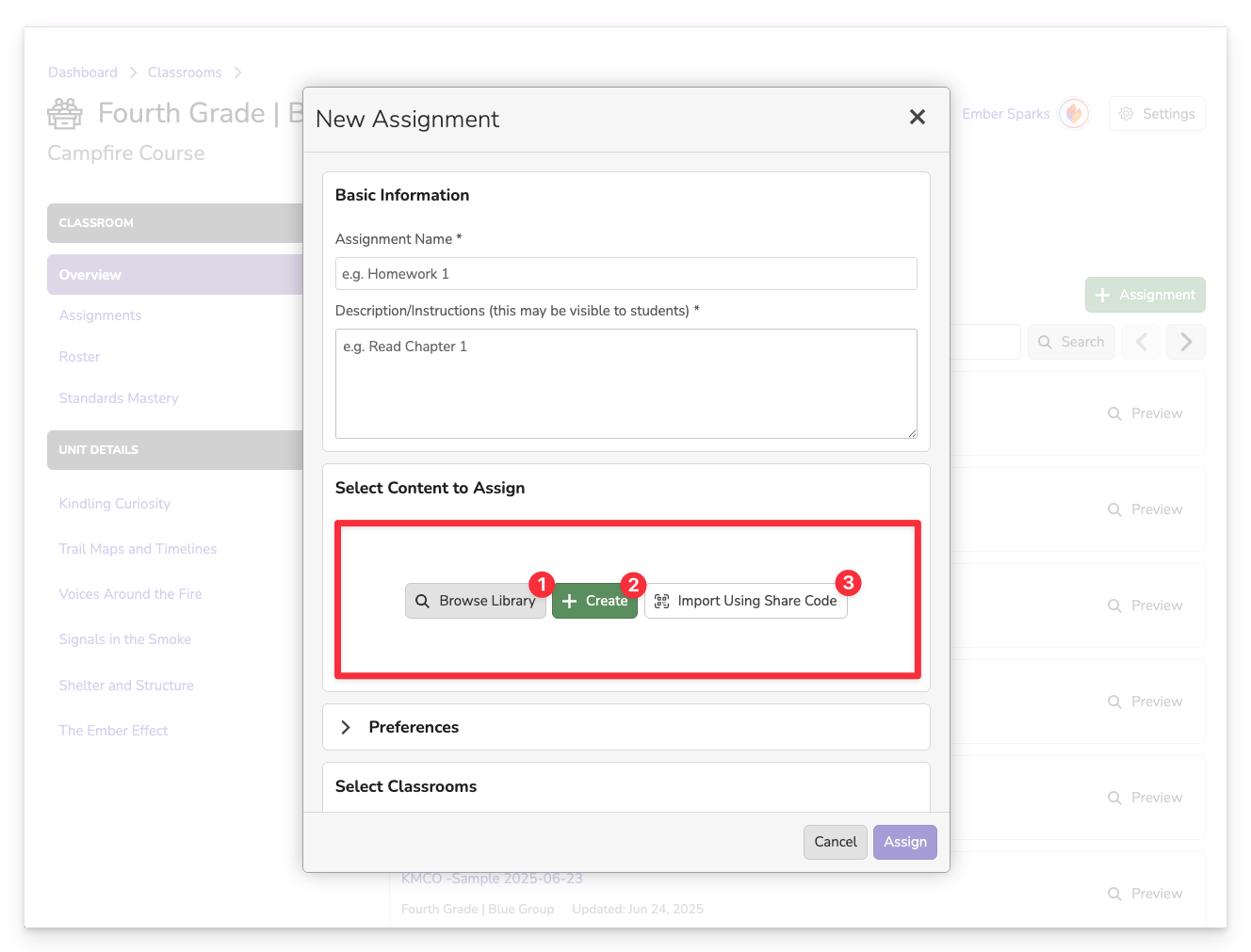
You have three ways to attach content:
- Browse Library – Choose from your existing assessments.
- Create New – Launch the authoring tools to build a new assessment.
- Use Share Code – Import content shared with you via a code.
Configure Assignment Settings
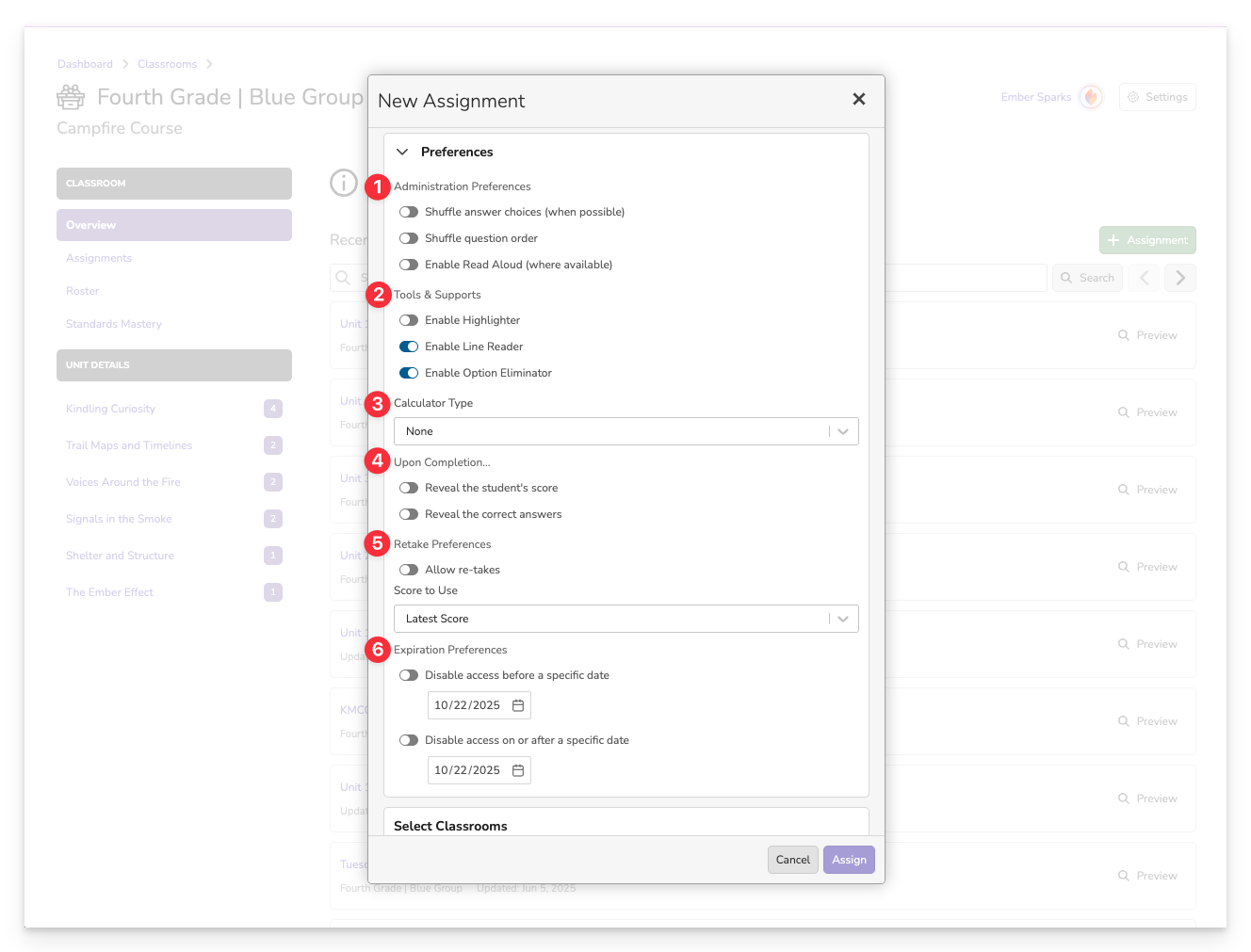
Customize how students experience the assignment using the Preferences section:
-
Administration Preferences
- Shuffle answer choices: Randomizes options for multiple choice items.
- Shuffle question order: Presents questions in a different sequence for each student.
- Enable Read Aloud: Allows text-to-speech when available.
-
Tools & Supports
- Enable Highlighter: Lets students highlight text in the item.
- Enable Line Reader: Adds a horizontal line to guide reading.
- Enable Option Eliminator: Allows students to strike through answer choices.
-
Calculator Type
- Select from available calculator options (e.g., None, Basic, Scientific), depending on assessment needs.
-
Upon Completion
- Choose what students see after submitting:
- Reveal their score
- Reveal correct answers
- Choose what students see after submitting:
-
Retake Preferences
- Allow re-takes: Let students attempt the assignment more than once.
- Score to Use: Choose which attempt counts (e.g., Latest Score, Highest Score).
-
Expiration Preferences
- Set availability windows by disabling access before or after a specific date.
Choose Classrooms and Attribute to a Unit
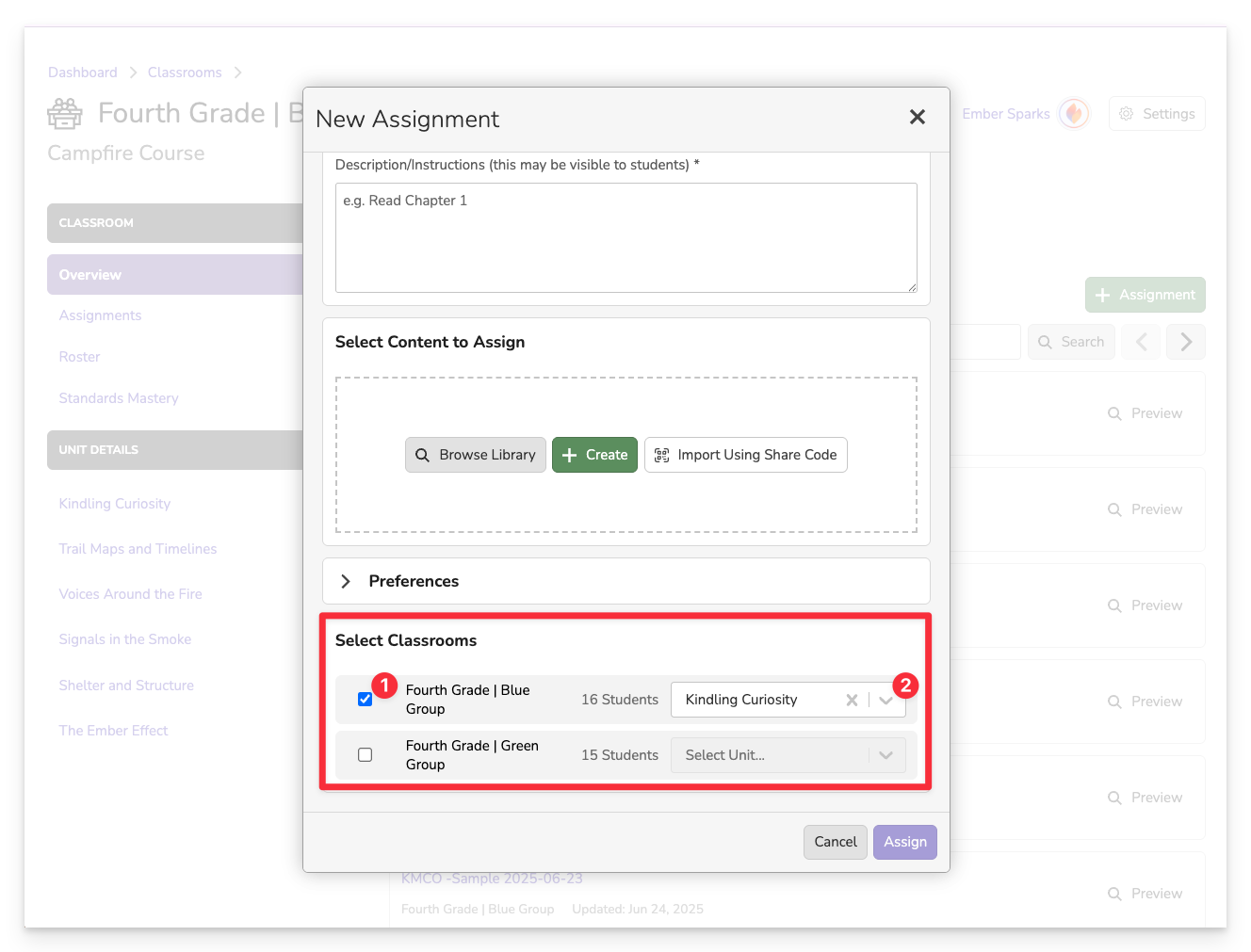
- Select one or more Classrooms where the assignment will be delivered.
- Assign the activity to a specific Unit within the course to ensure proper organization and reporting.
Finalize and Publish
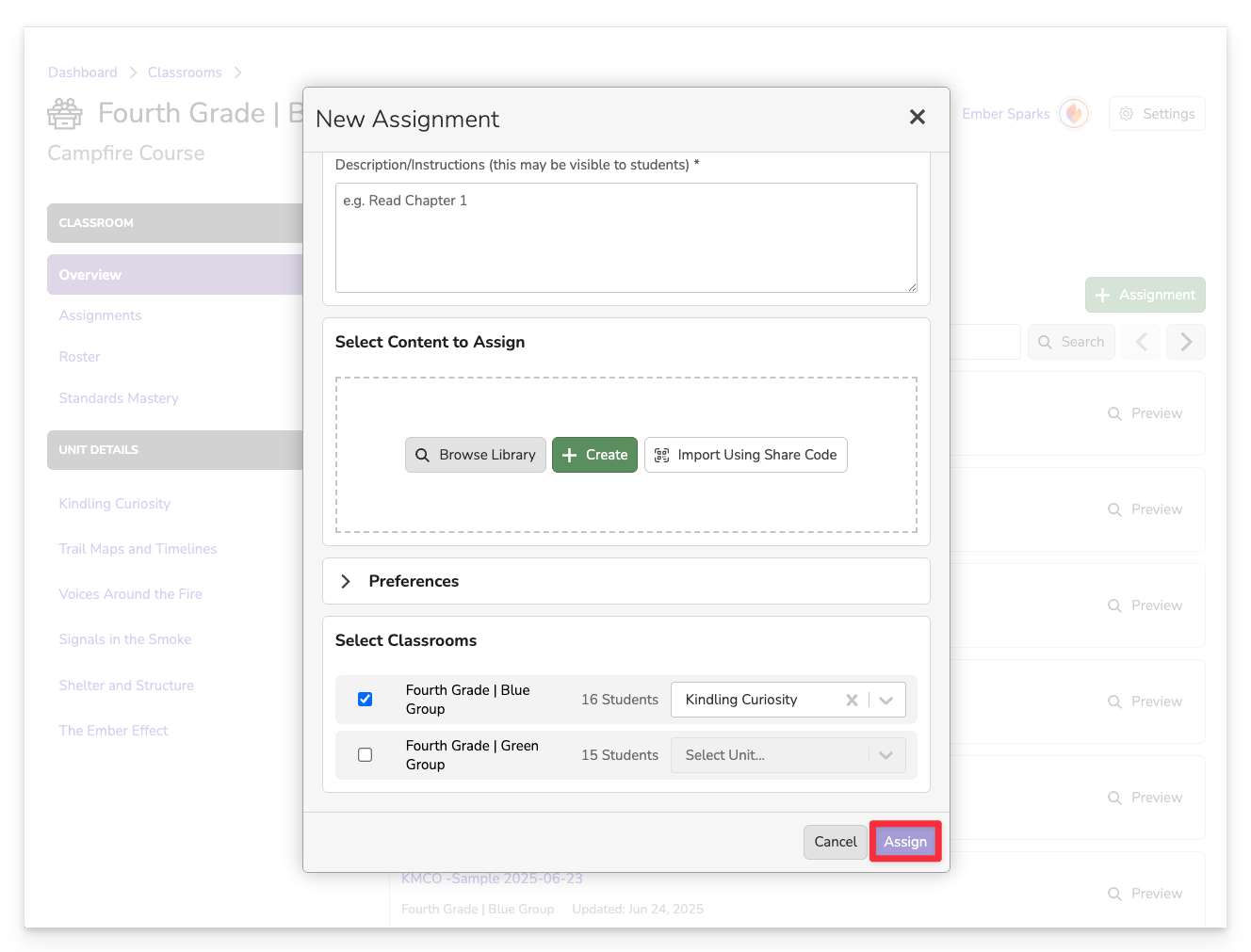
Review your settings, then click Assign. It will appear immediately in the selected classrooms.
Creating an assignment in Campfire Classroom is a streamlined process that helps instructors quickly deliver meaningful content to students. Whether you’re curating from your library, building new assessments, or sharing across teams, the assignment tool keeps everything organized and connected to instruction.