Manual Scoring
Some assessment items require manual scoring due to their open-ended nature. These include:
- Extended Constructed Response
- Short Constructed Response
- Extended Text Entry
- Drawing
This guide walks you through how to access and score these items effectively.
Access the Assignment
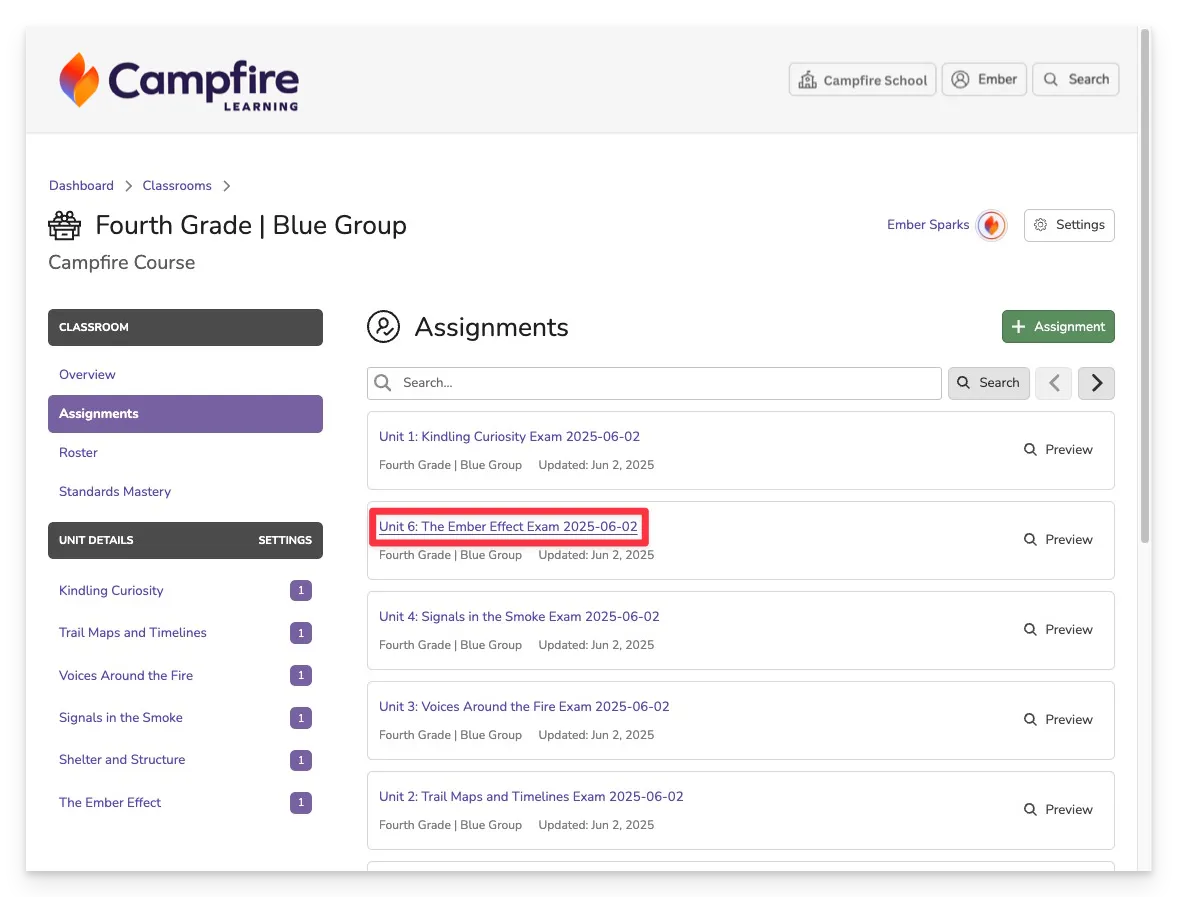
From the Assignments tab, Unit Details page, or any location where assignments are listed:
- Click the assignment title to open the assignment details.
Open a Student Submission
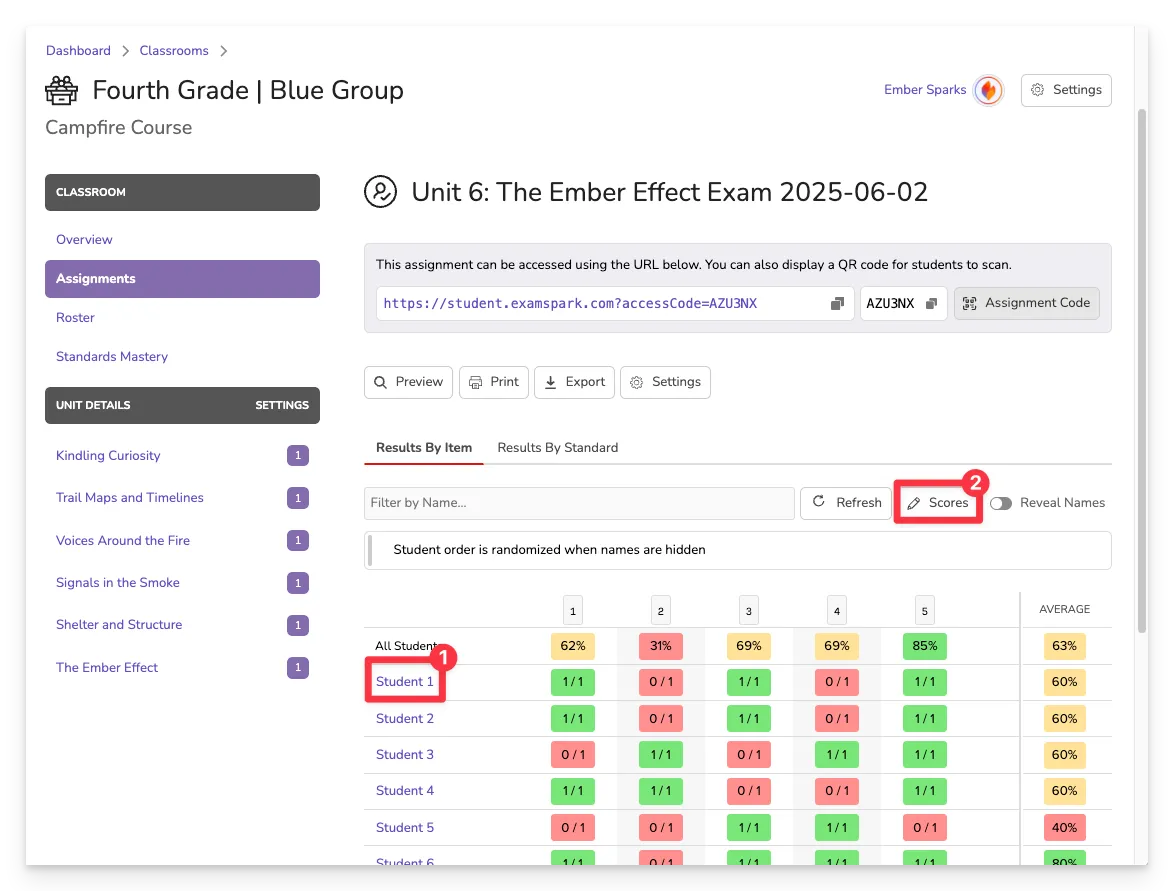
To review individual responses:
- Click the student’s name [1] or the Scores [2] button to open their submission.
- Scroll through the assessment to locate open-ended items.
Score Open Response Items
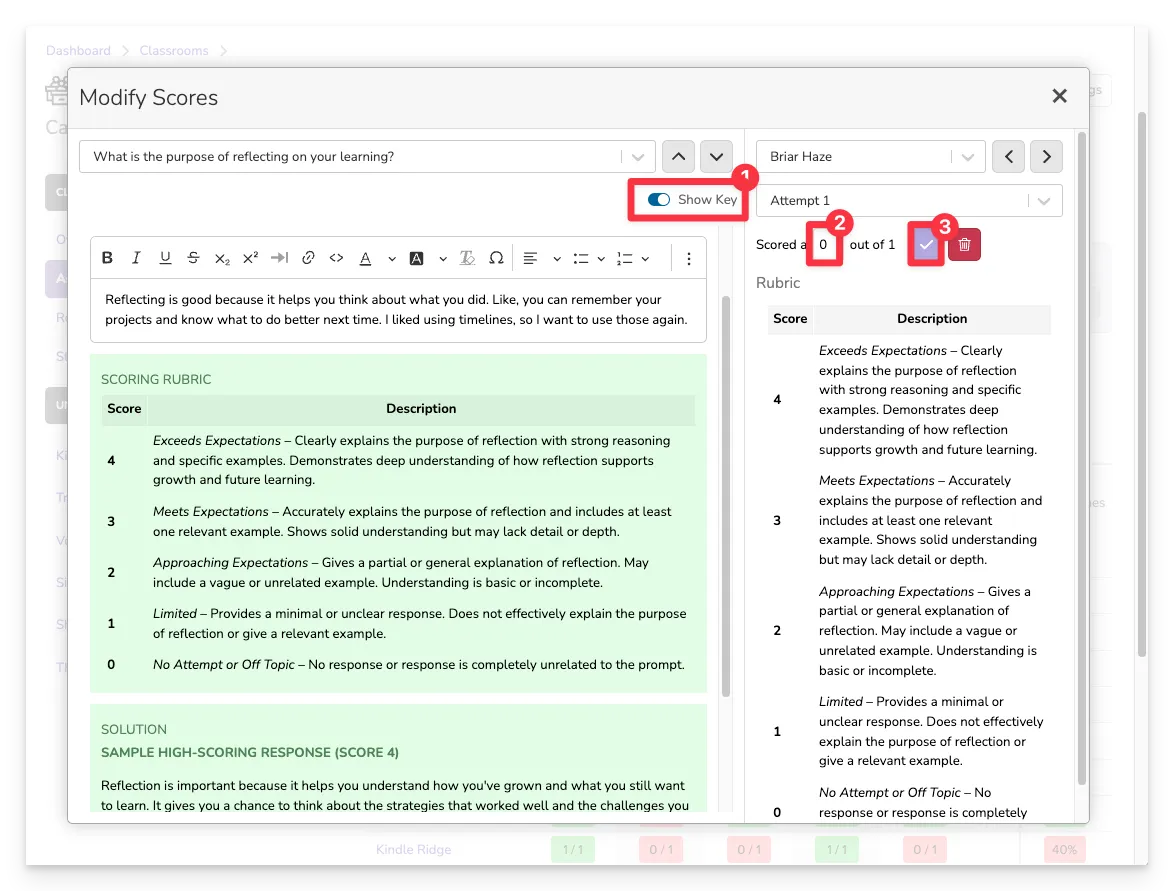
When you reach an item that requires manual scoring:
- Click Show Key (if available) to view the rubric or scoring guidelines.
- Enter a score in the provided field.
- Click the purple checkmark to save your score.
tip
You can update scores using this method for any item type—whether auto-scored or manually graded.
Once saved, scores immediately contribute to:
- The student’s overall assignment score
- The classroom Unit Mastery report
- The Standards Mastery dashboard
These insights help drive instruction and ensure that student growth is accurately tracked across all assessment types.